Web Application Pentesting
Web Application Pentesting engagements let Breach360 exercise web applications the way an attacker — or a human pentester — actually would: by driving a real browser against the target, navigating multi-step flows, and validating each finding against the live, rendered application. Coverage is modelled on the OWASP Top 10, and because testing happens at the browser level rather than via raw HTTP requests, single-page applications and JavaScript-heavy frontends are supported out of the box.
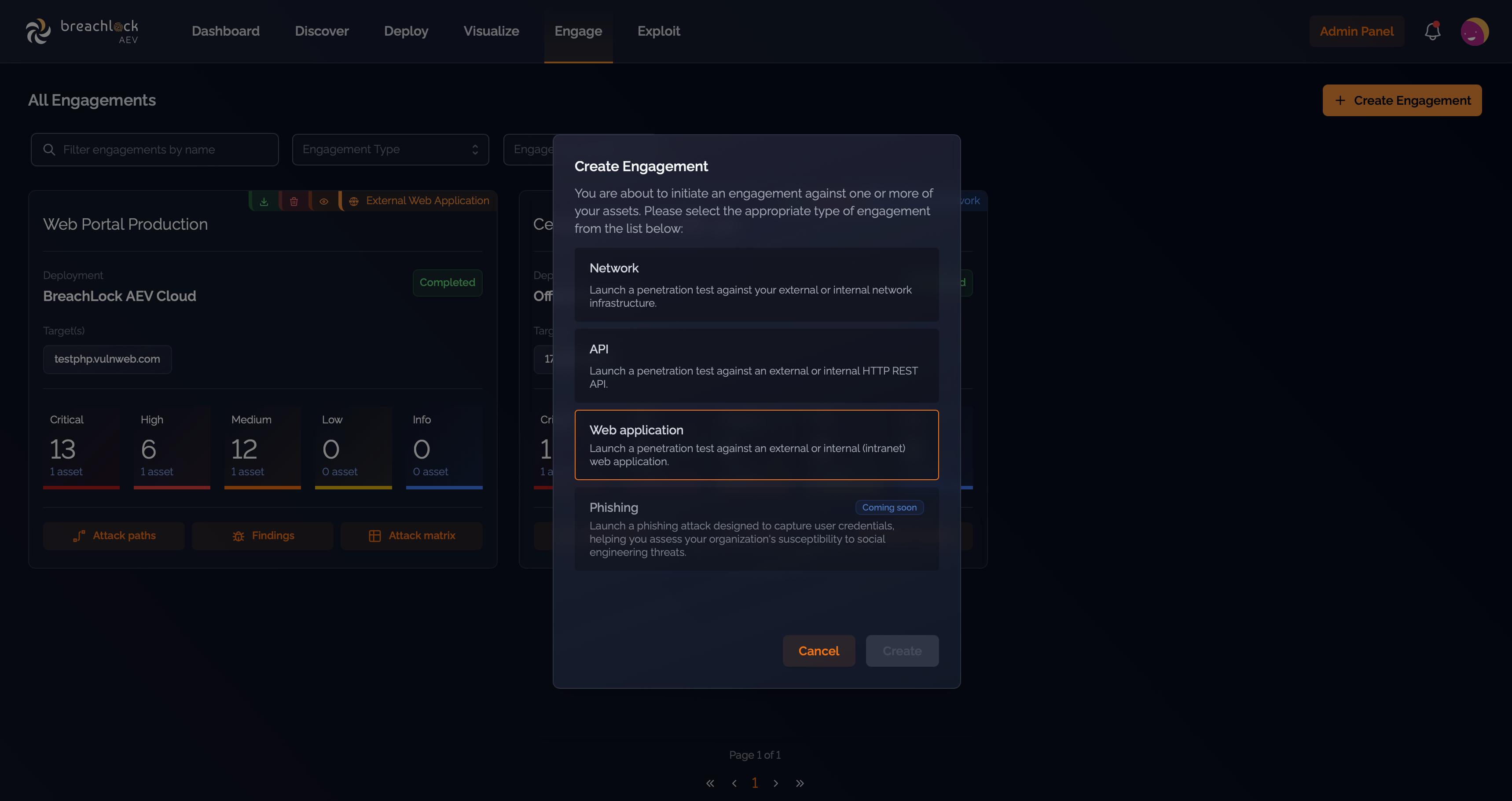
How web engagements differ from network engagements
A Web Application engagement runs through the same configuration wizard, the same configuration controls, the same exploitation logic, and the same review and reporting flow as a Network engagement — see Engagements for the full walkthrough. Two things work differently:
- Scope. Network engagements scope across IPs, subnets, or specific CVEs. A Web Application engagement scopes to a single web asset — one application per engagement.
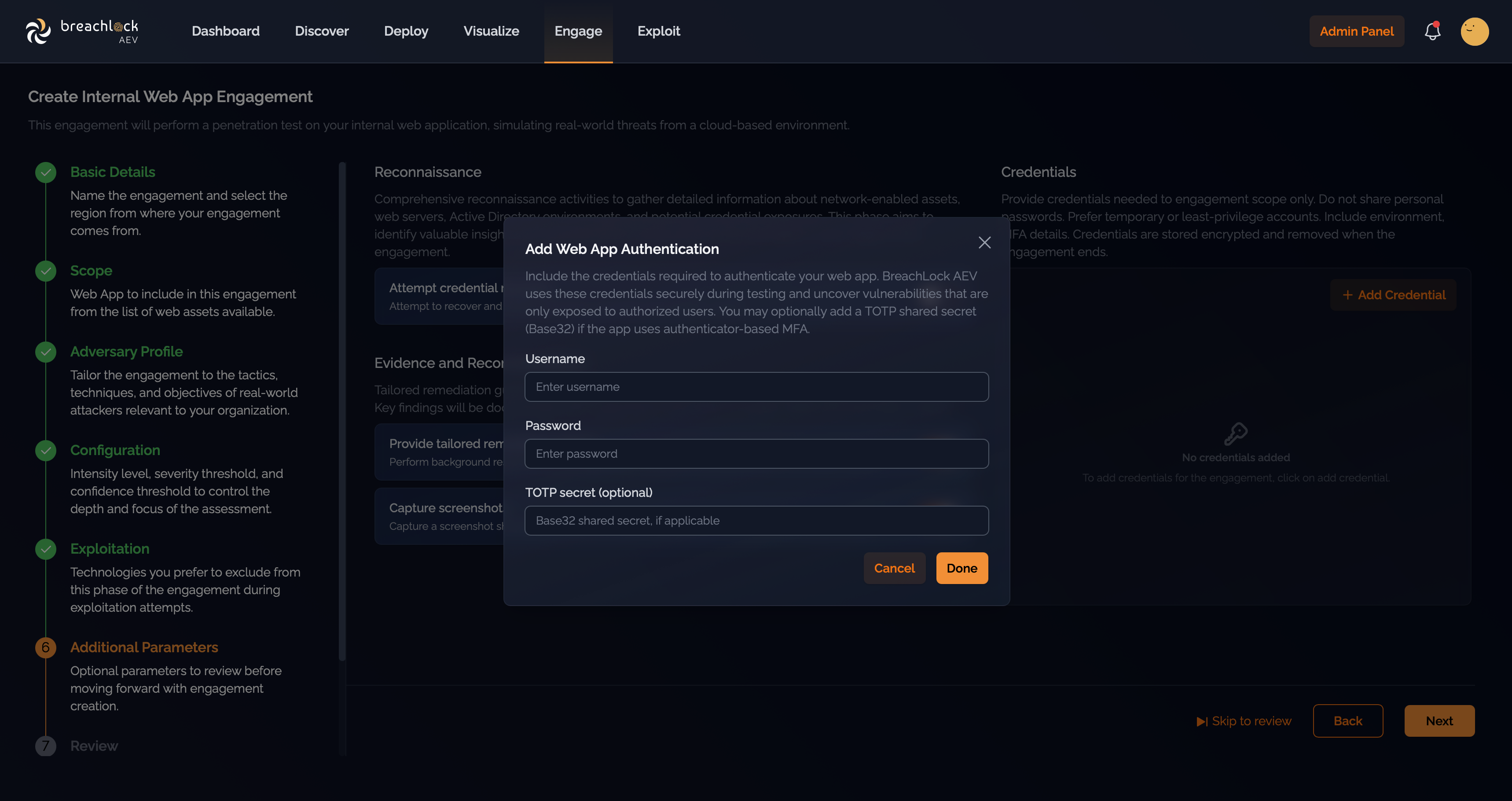
- Authentication. Network engagements use the credentials panel under Additional Parameters for directory-aware checks. Web Application engagements use a dedicated credentials block for application login: a username and password, with an optional TOTP secret.
Everything else — adversary profiles, scan intensity, severity and confidence thresholds, exploitation behaviour, evidence collection, attack matrix mapping, and reports — works exactly as documented for network engagements.
Internal vs external web engagements
As with network engagements, web engagements come in internal and external variants:
- Internal Web Application engagements run from one of your Breach360 deployments and target web applications reachable from inside your environment.
- External Web Application engagements target internet-exposed web applications from BreachLock infrastructure. The same source IP allowlist applies as for external network engagements — see Allowlist source IPs for external engagements.
Foothold version requirement: Internal Web Application engagements require foothold software v1.7.0 or later. If your deployment is running an earlier version, update the foothold before launching an internal web pentest — see Host Machine Requirements. External web engagements run from BreachLock infrastructure and are not affected by this requirement.
Defining web scope
Only one web asset can be in scope per Web Application engagement. The way you select that asset depends on whether the engagement is external or internal.
External engagements: select an asset from the Discover tab
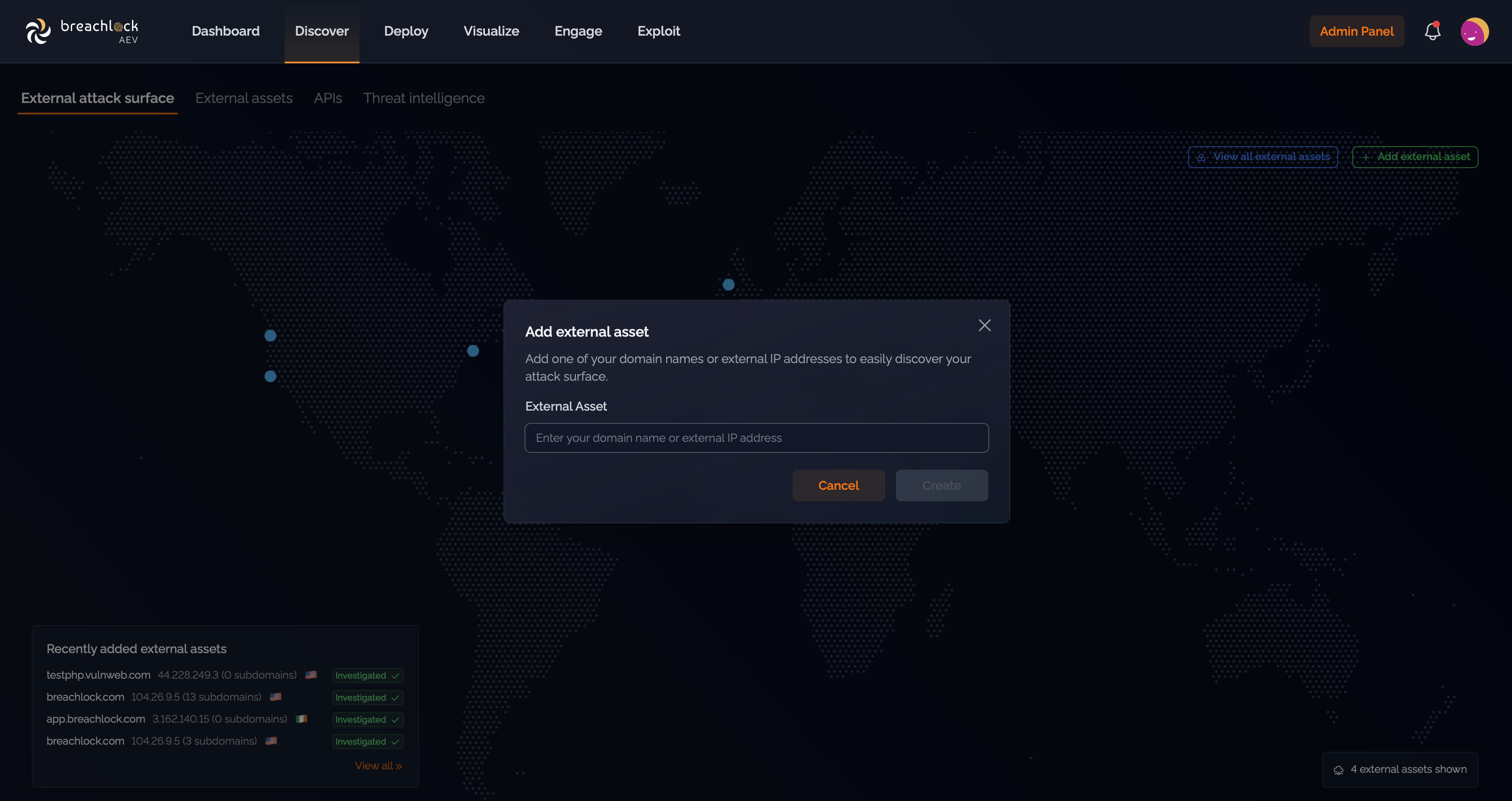
For external web engagements, scope is drawn from assets that have already been catalogued under the Discover tab. Add the application you want to test from Discover first; once it appears there, you can pick it up during the Scope step in the engagement creation flow.
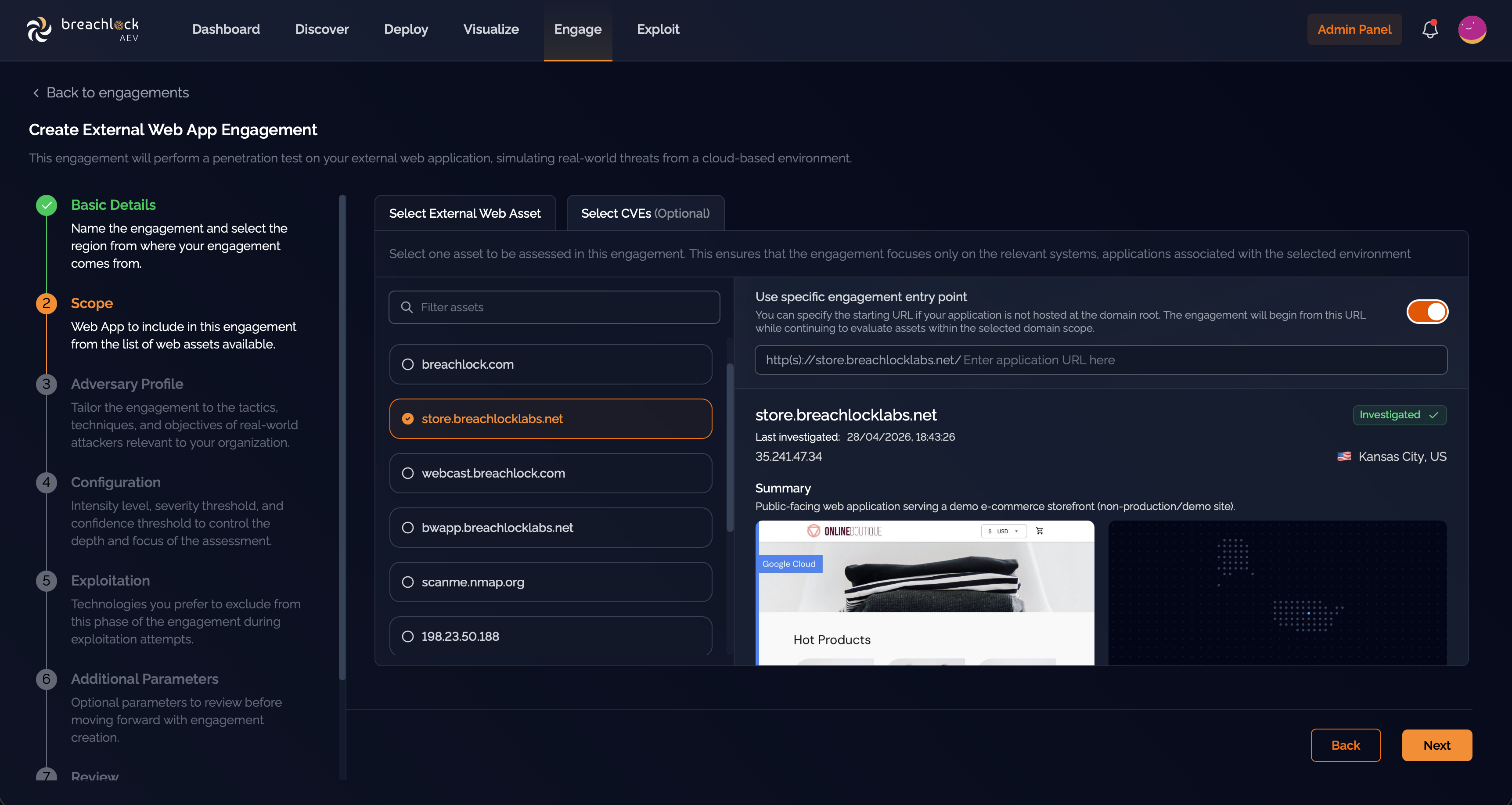
You can optionally control exactly where within the selected asset the engagement begins by enabling the Use specific engagement entry point toggle in the Scope step. When enabled, an additional URL field appears — enter the URL the engagement should start from. The asset must still be selected from Discover; the entry point URL controls the starting point within that asset, not the scope itself.
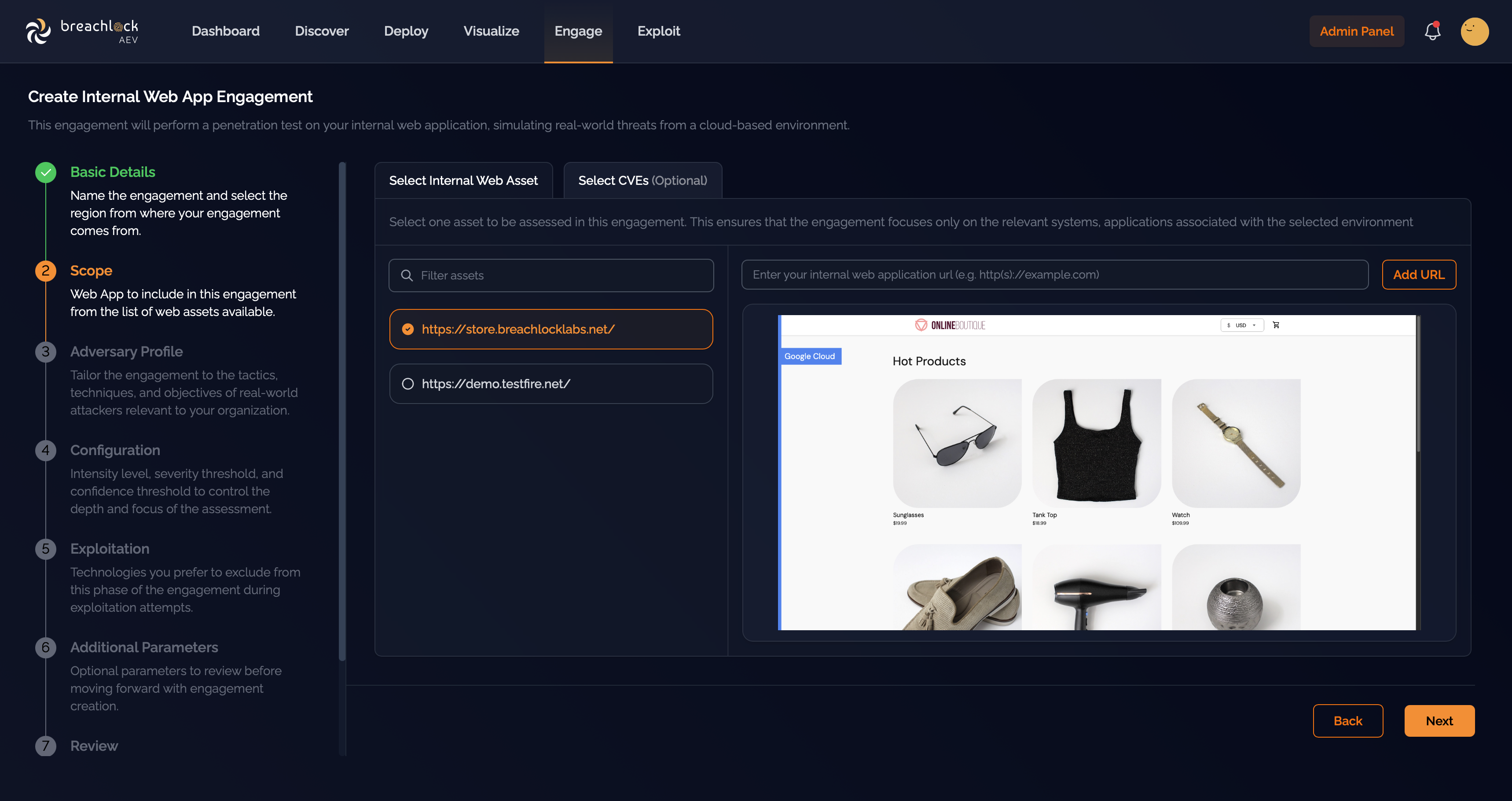
Internal engagements: add a URL during the Scope step
For internal web engagements, the Scope step in the engagement creation flow includes a URL input. Type the URL of the application you want to test and click Add URL. Breach360 fetches the page through your deployment and shows you a screenshot of the rendered application so you can confirm it is the right target. Once confirmed, the URL becomes available to add to the engagement scope.
Authentication
Web engagements support both unauthenticated and authenticated testing:
- No credentials provided – the engagement runs as black-box: Breach360 exercises the application as an anonymous user.
- Credentials provided – the engagement runs as grey-box: Breach360 signs in to the application and exercises authenticated functionality. The same session is reused for the confirmation re-test, so authenticated findings can be reliably reproduced.
Credentials for web engagements are limited to a username and password, with an optional TOTP secret for applications that require time-based one-time codes. They are stored in encrypted form and removed automatically when the engagement ends.
If authentication fails — for example, because the application redirects to a third-party identity provider that Breach360 cannot authenticate against — the engagement continues against that asset in black-box mode rather than excluding it from scope.
Configuration, exploitation, and review
The remainder of the engagement creation flow — Adversary Profile, Configuration (intensity, severity, and confidence thresholds), Exploitation, Additional Parameters, and Review — applies to web engagements without modification. Refer to Engagements for the full description of each step.
What gets tested
Web Application Pentesting coverage is modelled on the OWASP Top 10 and is delivered by AI agents driving a real browser, just as a human pentester would. The platform does not rely on curl-style traffic generation; every check is performed against the live, rendered application. As a result:
- Single-page applications, dynamic frontends, and JavaScript-heavy flows are exercised correctly.
- Multi-step user journeys — logins, wizards, transactional flows — are followed the way a real user would follow them.
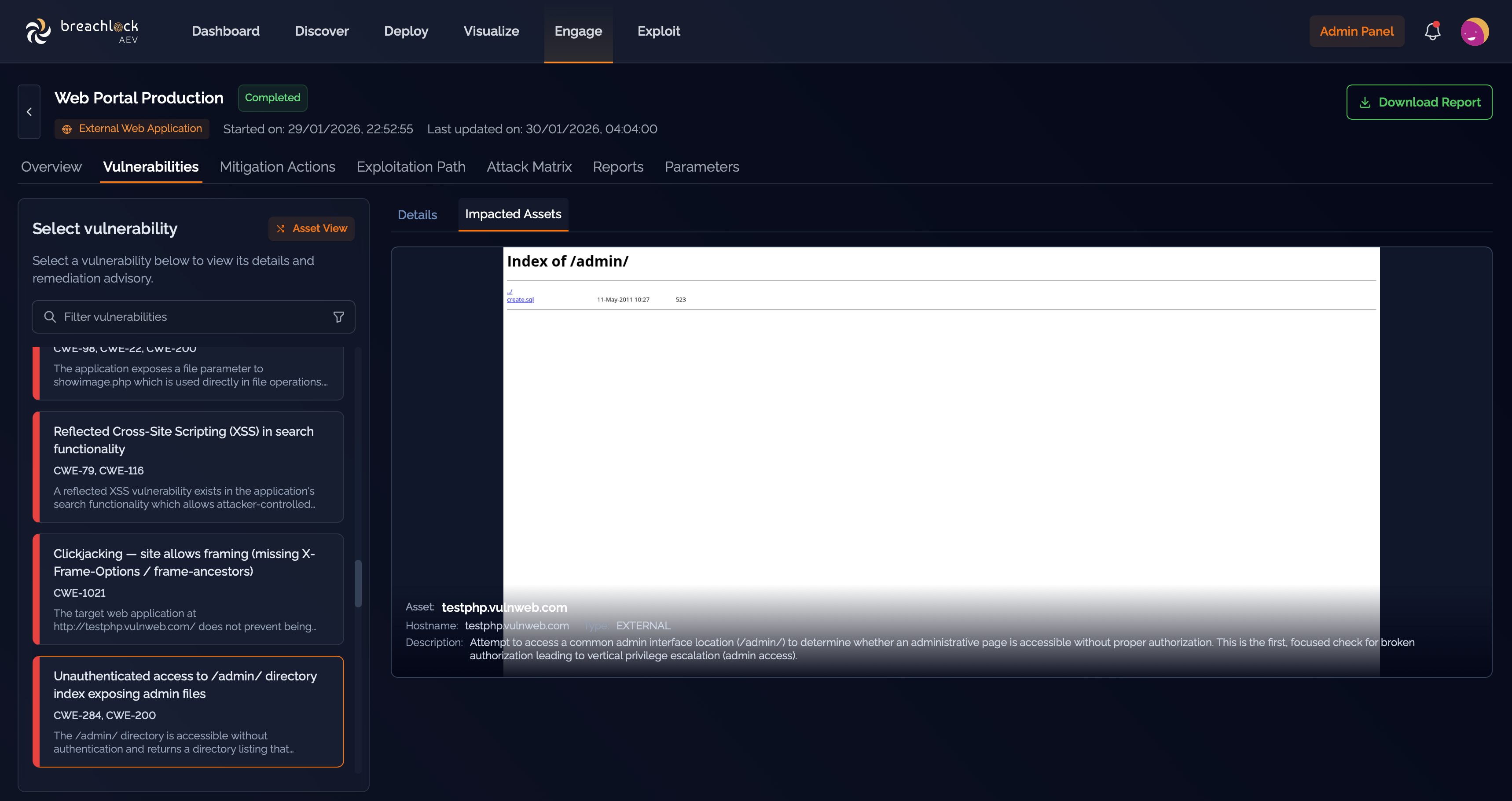
- Evidence captured for each finding includes real browser screenshots, not just request and response pairs, so what you see in the report matches what an attacker would see in their browser.
Reviewing results
Web findings appear in the same Engagement View as network findings — Vulnerabilities, Mitigation Actions, Exploitation Path, Attack Matrix, Reports, and Parameters. See Engagement View for the full reference.
The most visible difference for web engagements is in vulnerability evidence: where a network finding might be backed by command output or extracted logs, a web finding is typically backed by a browser screenshot showing the issue in the rendered application, alongside the request and response pair that triggered it.
Need help with web engagements? Reach out to your BreachLock representative or email us at support@breachlock.com.