Deployment
The Deployment page gives you complete visibility into the status and health of all your Breach360 deployments. Monitor deployment status, view alerts, track environments, and review operational history to ensure your security testing runs reliably across your infrastructure.
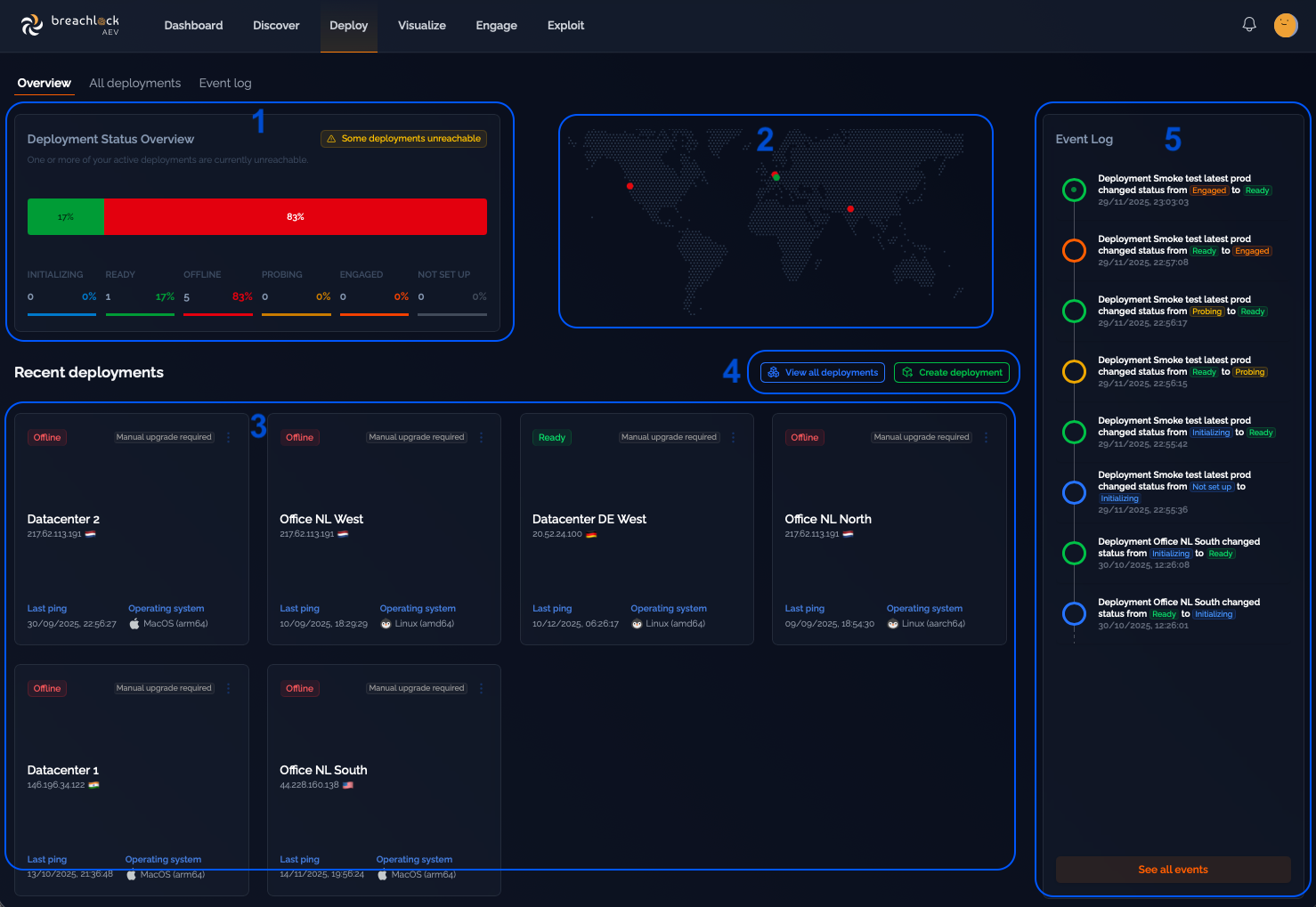
The Deployment page includes:
-
Deployment Status Overview – A status bar showing the health of all your active deployments:
- Ready (green) – Deployment is operational
- Offline (red) – Deployment is not responding
- Initializing (blue) – Deployment is starting up
- Probing (orange) – Deployment is checking connectivity
- Engaged (yellow) – Deployment is running an engagement
- Not Set Up (gray) – Deployment has not been configured
-
Global Deployment Map – A world map showing the geographic locations of all your deployments.
-
Recent Deployments – Cards showing your recently active or modified deployments.
-
Deployment Management – Controls to manage your deployments:
- View All Deployments – See your complete deployment inventory
- Create New Deployment – Add a new Breach360 deployment
-
Event Log – A real-time log showing chronological updates about deployment activity.
Create Deployment
Here's how to create a new deployment:
-
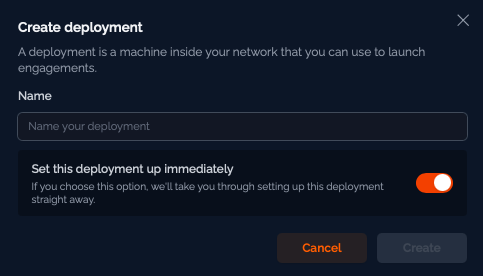
Enter a name for your deployment and keep the toggle "On" if you want to set it up immediately, then proceed to the next step.
-
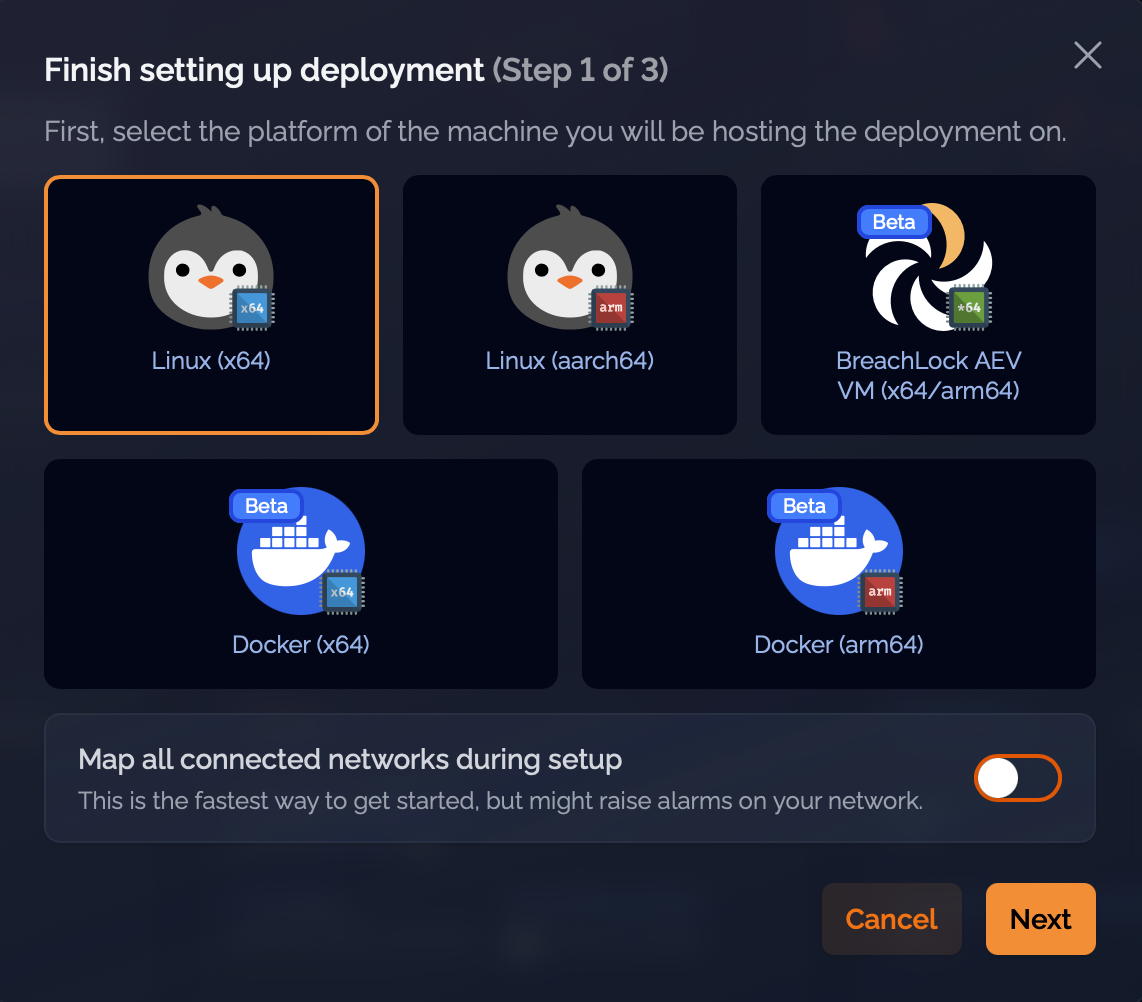
Select the operating system for your deployment.
Supported operating systems: - Linux (Ubuntu 20.04 or later) - Virtual Machine (any compatible hypervisor) - Docker (fully containerized deployment)
Note: Other Linux distributions may also work, but BreachLock does not offer support in these cases. Breach360 can still perform lateral movement to Windows and Mac hosts during engagements, whichever supported deployment type the foothold runs on.
Note: Docker-based deployments are recommended only for fully containerized application architectures (e.g. Kubernetes). For other use cases, OVA or dropper-based deployments are more appropriate.
-
Copy and paste the installation command on the machine where you're deploying the foothold.
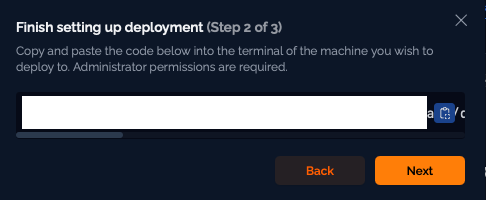
For detailed deployment instructions and technical requirements, see the Foothold Setup Guide.
Deployment Context Menu
The deployment context menu gives you quick access to management actions for any deployment. Click the more options menu (three vertical dots) on any deployment card to see available actions. You can perform operational, diagnostic, and lifecycle actions without leaving the deployment overview.
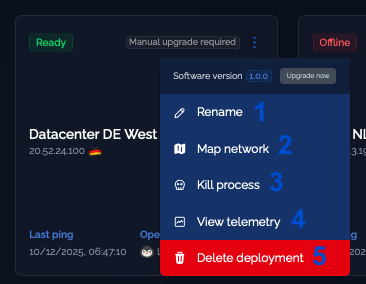
Available actions:
- Rename – Change the deployment's display name
- Map Network – Start a network mapping operation from this deployment
- Kill Process – Stop the Breach360 deployment agent on the host machine
- View Telemetry – View detailed telemetry and performance data for the deployment
- Delete Deployment (Destructive Action) – Permanently remove the deployment from your environment
Map Network
The Map Network screen lets you run a network discovery scan from a specific deployment. This scan identifies machines and reachable network segments in your environment, giving you visibility into your internal attack surface.
You typically access this screen through the Deployment Context Menu. Use it to discover what assets a deployment can see in its local environment.
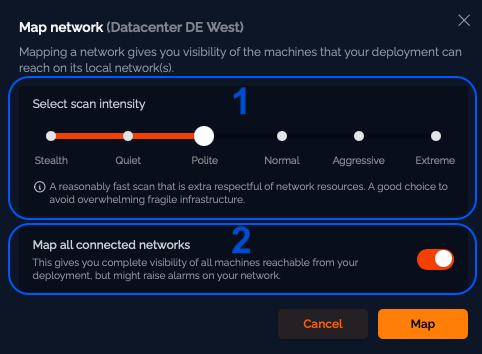
-
Scan Intensity Selector – Use the slider to choose your scan intensity:
Intensity Description Stealth Minimal traffic. Hardest for IDS/IPS to detect, but slowest. Quiet Low-intensity scan with gentle probing to avoid triggering alerts. Polite (default) Balanced scan that is respectful of network resources. Suitable for production environments. Normal Standard mapping speed and thoroughness. Aggressive Faster, more comprehensive, may trigger detection systems. Extreme Highest intensity, thorough but aggressive. Only for controlled environments. -
Map Connected Networks – Control which networks to scan. You can map all reachable subnets or specify a CIDR or network range.
View Telemetry
The Telemetry screen shows detailed, real-time information about a deployment's health, environment, and activity. Use it to monitor the performance, stability, and connectivity of your deployments and troubleshoot any issues that arise.
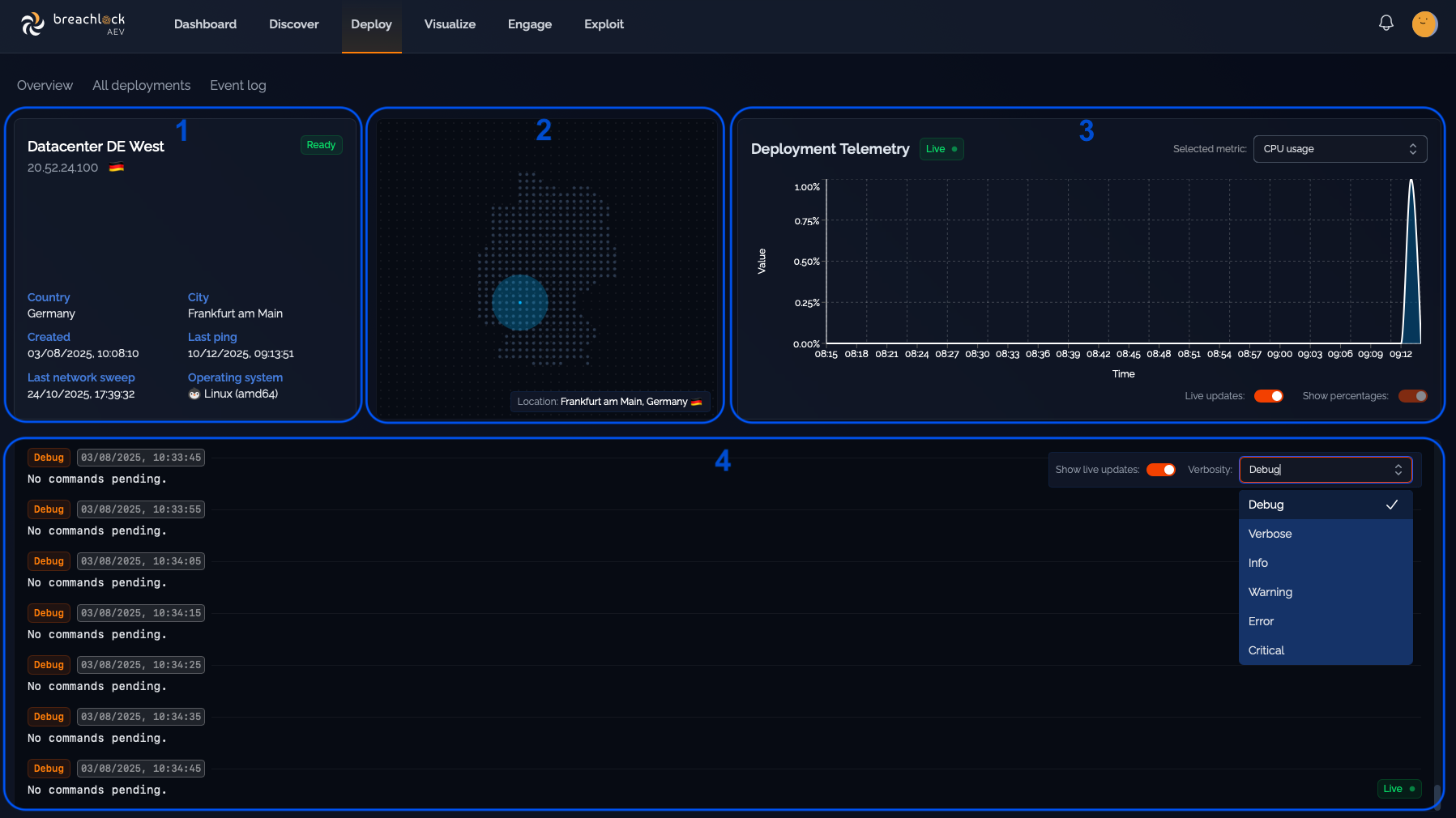
The Telemetry screen includes:
-
Deployment Metadata – Essential information about the deployment's status, helping you quickly verify if it's healthy and reachable.
-
Location Map – A visual map showing the deployment's physical location, useful for correlating deployments to geographic regions or datacenter clusters.
-
Telemetry Graph – Real-time graphs showing live operational metrics from the deployment.
-
Command and Telemetry Log – A log of the deployment's internal activity, useful for debugging, audit tracking, and understanding what the deployment is doing.
Need help with deployment setup? If you run into any issues while setting up a deployment, start with Deployment Health in the Troubleshooting section. If that does not resolve it, the BreachLock team is here to help. Reach out to your BreachLock representative for assistance or email us at support@breachlock.com.