Visualization
The Visualization page provides an interactive map of your internal network topology as discovered by Breach360 deployments. The map shows how machines, interfaces, and reachable subnets connect to each other, helping you understand your internal attack surface from an attacker's perspective and identify potential security gaps.
Use this page to:
- Understand your internal network topology and which hosts are reachable from each deployment
- Detect segmentation gaps and visualize your internal attack surface
- Pick targets for engagements directly from the discovered network
The data shown reflects real network reachability inside your environment, captured by the selected deployment.
Mapping a Network
Network mapping is initiated from a specific deployment, not from this page. To produce or refresh the data shown here, start a Map Network operation from the deployment's context menu on the Deploy page. From there you can choose the scan intensity and decide whether to map all reachable networks or only the directly connected ones. See Map Network on the Deployment page for the full procedure and intensity reference.
Before mapping, make sure the deployment is in the Ready state and has active network connectivity. Engagements can't be launched from deployments that are Offline or Unavailable, and the same applies to network mapping.
The Network Graph
Once mapping completes, open Visualize to see the resulting graph for that deployment.
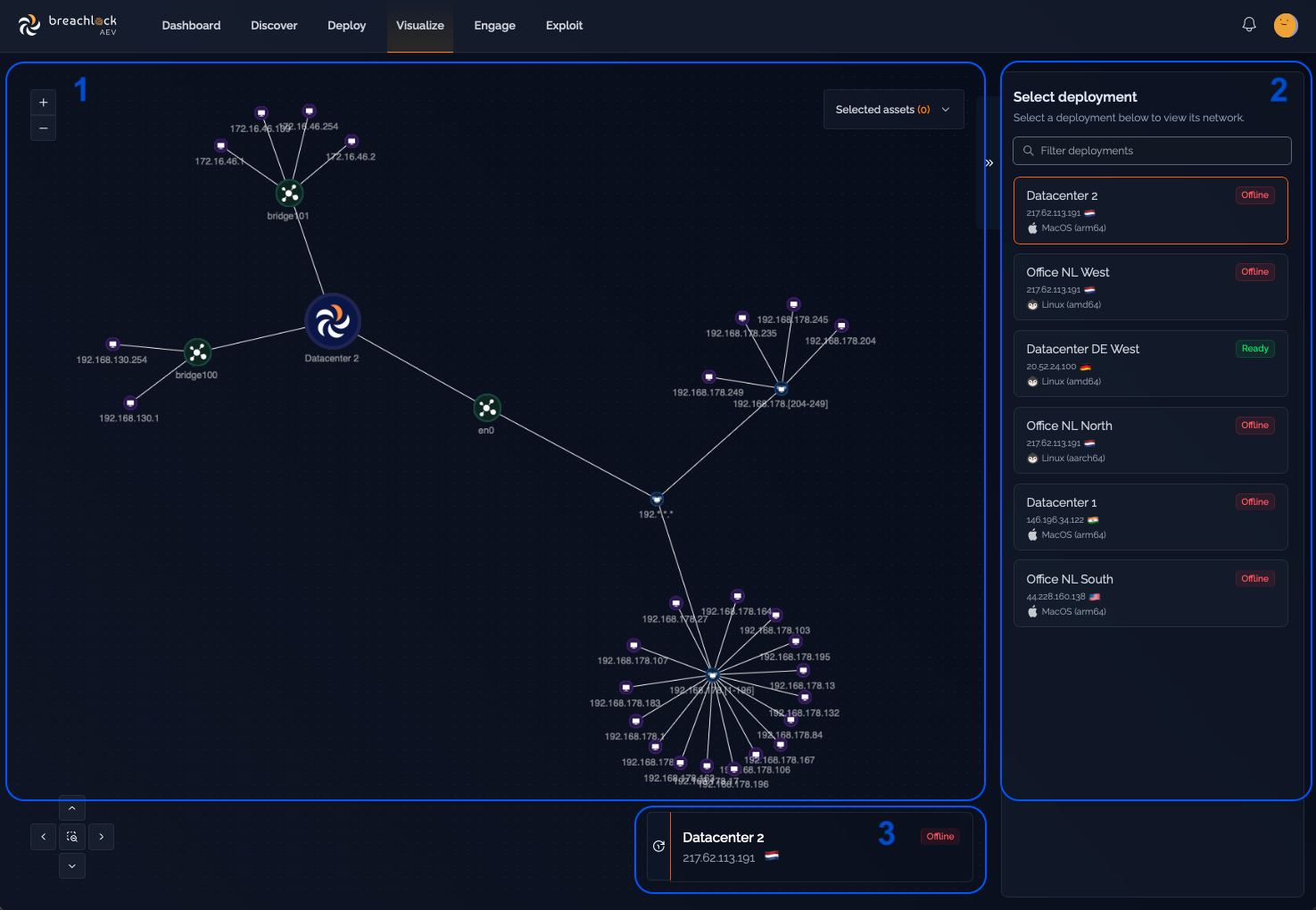
The Visualization page includes:
-
Network Graph – An interactive, node-based network graph showing hosts and network interfaces detected by the selected deployment.
Icon/Shape Meaning Central deployment node The deployment that initiated discovery Green network interface nodes Active interfaces on the deployment (e.g., en0, bridge100) Purple host nodes Machines reachable from the deployment Clustered nodes Subnets or groups of endpoints linked to a common network path -
Deployment Selector – A sidebar listing all your deployments. Select any deployment to view its network graph:
- Ready deployments show their latest network map
- Offline deployments show the last known network data
-
Deployment Summary – Shows which deployment's network graph you're currently viewing. You can also go back in time to view previous network maps for the same deployment, which is useful for spotting changes in topology between mapping runs.
Working with the Graph
The graph is interactive, so you can do more than just view it:
- Select hosts to scope an engagement – Click hosts in the graph to select them as targets, then start an engagement directly from the selection. This is useful when you want to engage assets you've just discovered without re-entering them by hand.
- Review historical snapshots – Step back through previous mapping runs for the deployment to see how the network looked at earlier points in time.
- Compare topology changes – Use historical snapshots to identify new hosts, removed hosts, or segmentation changes between mapping runs.
Exporting Discovered IPs
To export the IP addresses discovered during the selected mapping session, click Export CSV. The file contains every IP found in that session and is useful for asset inventory validation, CMDB reconciliation, reporting, or follow-on security analysis.