Getting Started
Welcome to Breach360! You'll receive an email with a secure link containing your account setup instructions. If you have any questions during setup, the BreachLock team is here to help.
Log in to Breach360
To get started, follow these steps:
-
In your web browser, navigate to: https://aev.breachlocklabs.com/ (or, for POV customers, https://aev-demo.breachlocklabs.com)
-
Enter your credentials when prompted.
Once you're logged in, navigate to your user profile → Account settings to configure your account.
Password Requirements
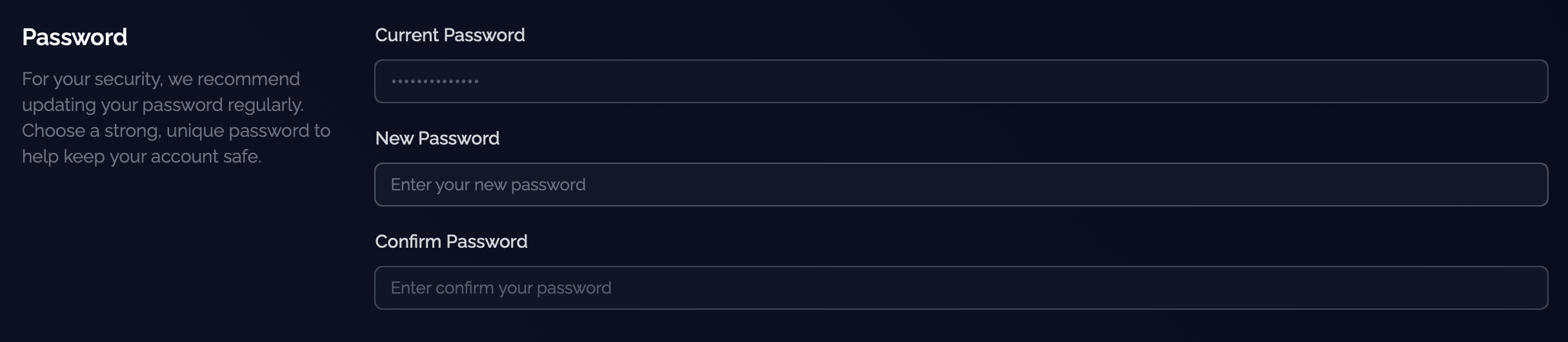
When creating or resetting your password, make sure it meets these requirements:
- Minimum character length of 8, maximum of 64
- 1 upper case character
- 1 lower case character
- 1 special character
- 1 numeric digit
Multi-Factor Authentication (MFA)
Multi-Factor Authentication adds an extra layer of security to protect your account. You'll need to set up an authenticator app on your mobile device. We recommend using Google Authenticator or Microsoft Authenticator—both work great with Breach360.
Setting up MFA
Here's how to enable MFA for your account:
-
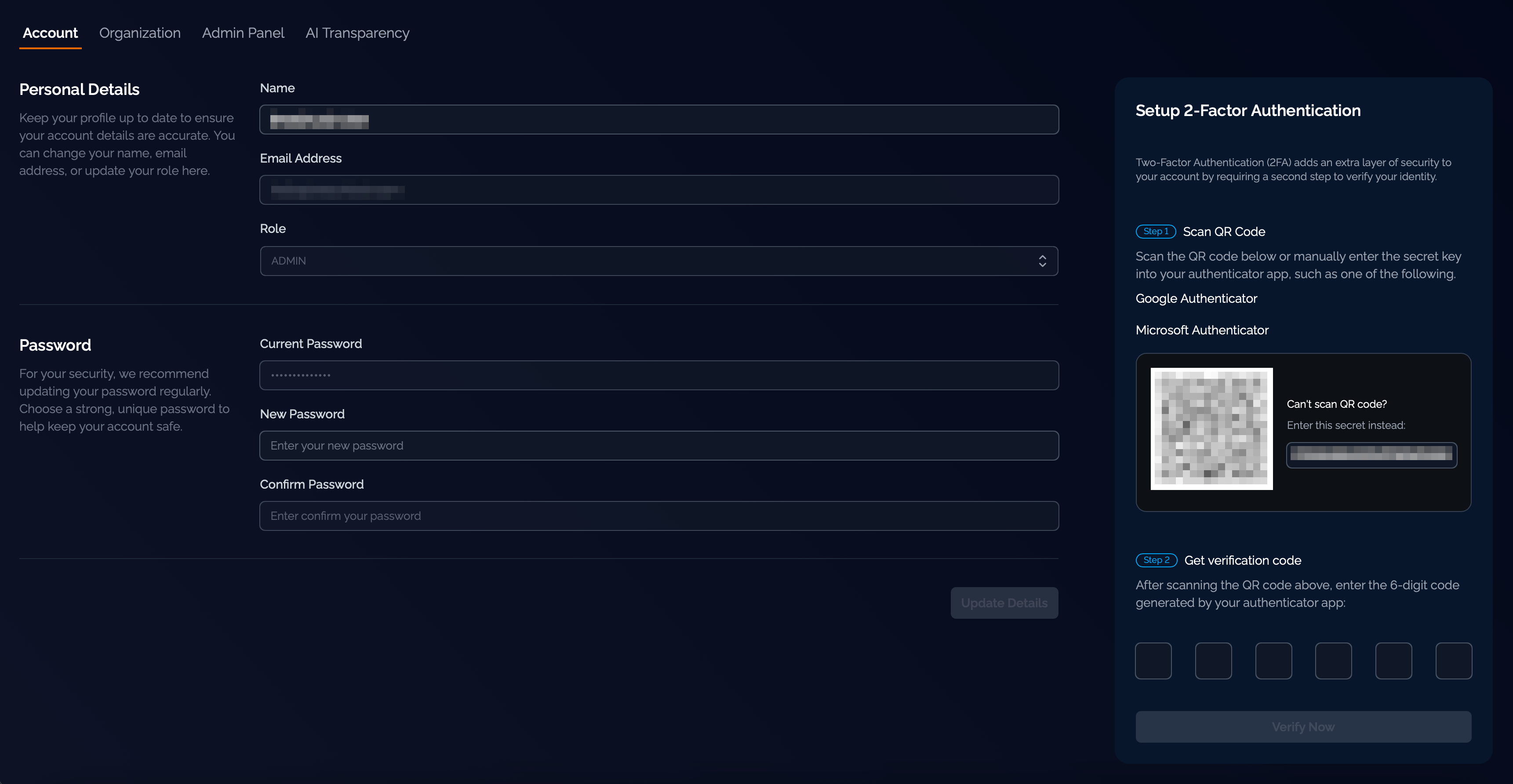
Navigate to User profile → Account Setting.
-
Once you've selected the Authenticator app on your device, you'll need to open your app and scan the QR code on the screen.
-
Once scanned, your Authenticator App will show a Multi-Factor Authentication Code. Enter that code into the boxes on the screen and select Verify.
Authenticator App Information
Choose the authenticator app that works best for you. Follow the instructions below for your preferred app:
Google Authenticator App
- Download the Authenticator app for iOS or Android.
- Tap the plus button in the bottom right-hand corner.
- Tap Scan a QR Code.
- Enter the code shown in the Google Authenticator app into the fields in the Breach360 platform.
- Once verified, you're all set!
Microsoft Authenticator App
- Download the Authenticator app for iOS or Android.
- Tap the three dots in the right-hand corner.
- Tap Add Account.
- Tap Work or School account.
- Tap Scan a QR code in the pop-up.
- Scan the QR code shown in the Breach360 platform and select Done.
- A new account called "Breach360" will appear in your accounts list. Enter the code from your Microsoft Authenticator app into the fields in the Breach360 platform.
- Once verified, you're all set!
Need help? If you run into any issues during setup, see Platform Access for sign-in and multi-factor authentication problems. Otherwise, don't hesitate to reach out to your BreachLock representative or email us at support@breachlock.com. We're here to make sure you get up and running smoothly.