Configuring the OVA
The OVA (Open Virtualization Archive) deployment option provides a pre-configured virtual machine that you can import into VirtualBox or VMware. This method simplifies deployment by eliminating the need for manual installation and configuration steps.
Step 1: Select OVA Deployment Option
When creating a new deployment, select OVA as your deployment type from the operating system options.
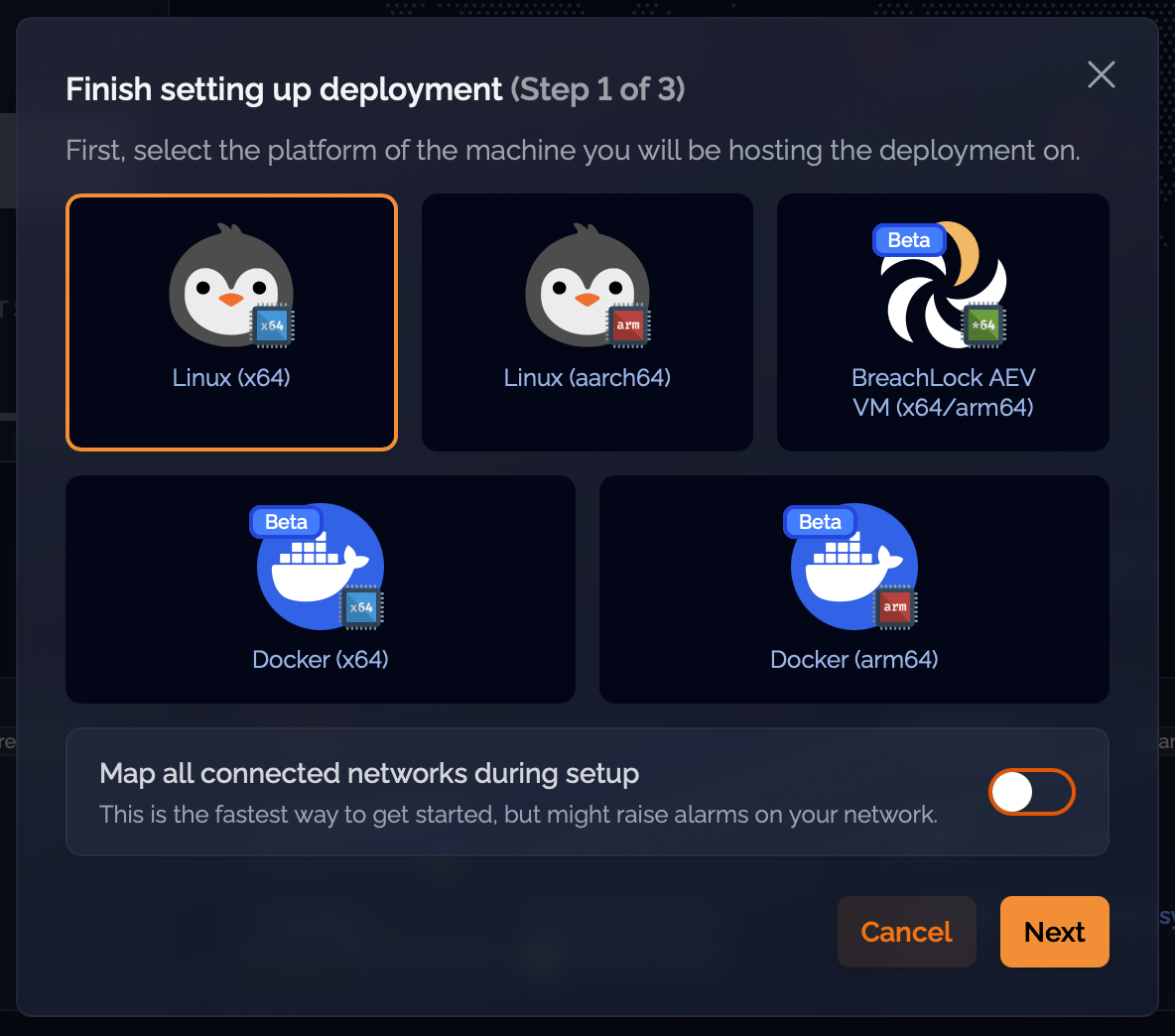
Step 2: Download OVA File and Get Pairing Code
After selecting OVA, you'll see download options for both VirtualBox and VMware-compatible OVA files. Choose the file that matches your virtualization platform. The screen also displays a pairing code that you'll need during setup to link the OVA to your deployment.
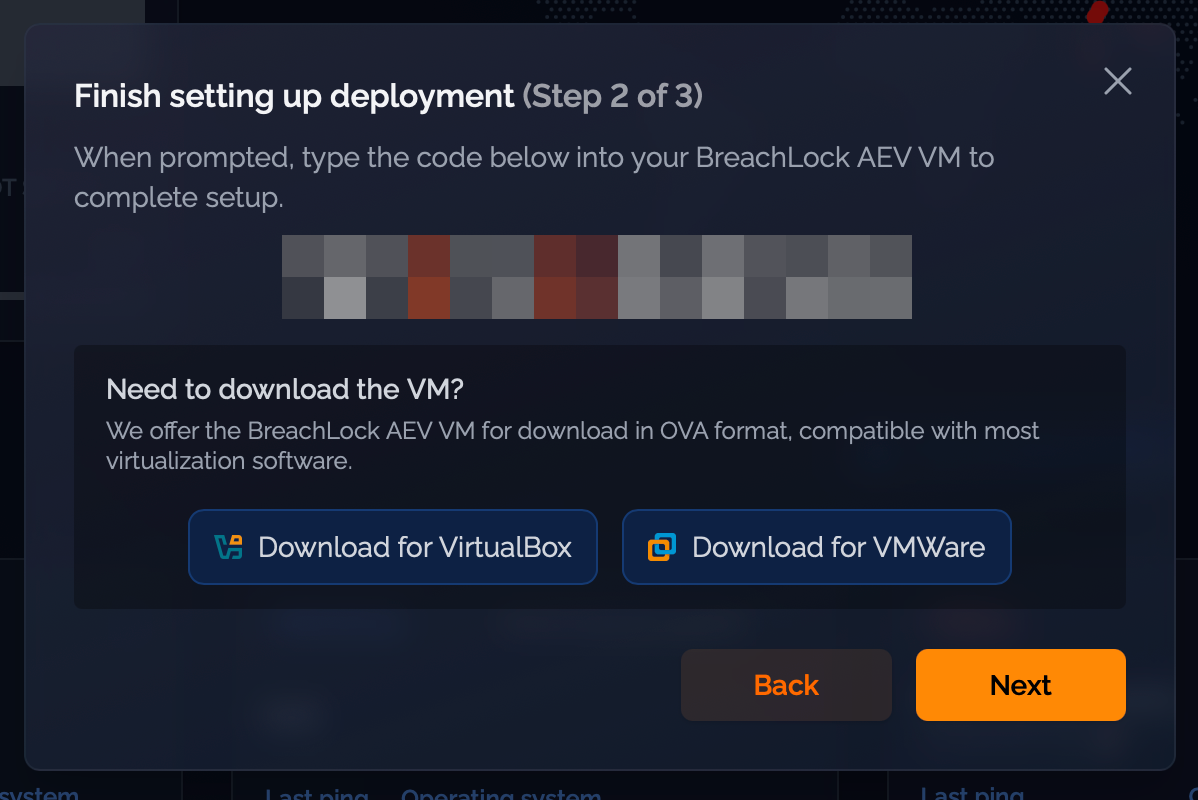
Important: Save the pairing code shown on this screen. You'll need it later to complete the setup process.
Note: For security reasons, the pairing code rotates every 60 minutes until setup is complete. If your pairing code expires before you finish setup, return to the Breach360 platform to retrieve the current pairing code.
Step 3: Import and Start the OVA
Import the downloaded OVA file into your virtualization software (VirtualBox or VMware) and start the virtual machine. When the OVA boots, you'll see a splash screen with two options:
- Begin setup – Start the configuration process
- Go to terminal – Access the command line for advanced configuration
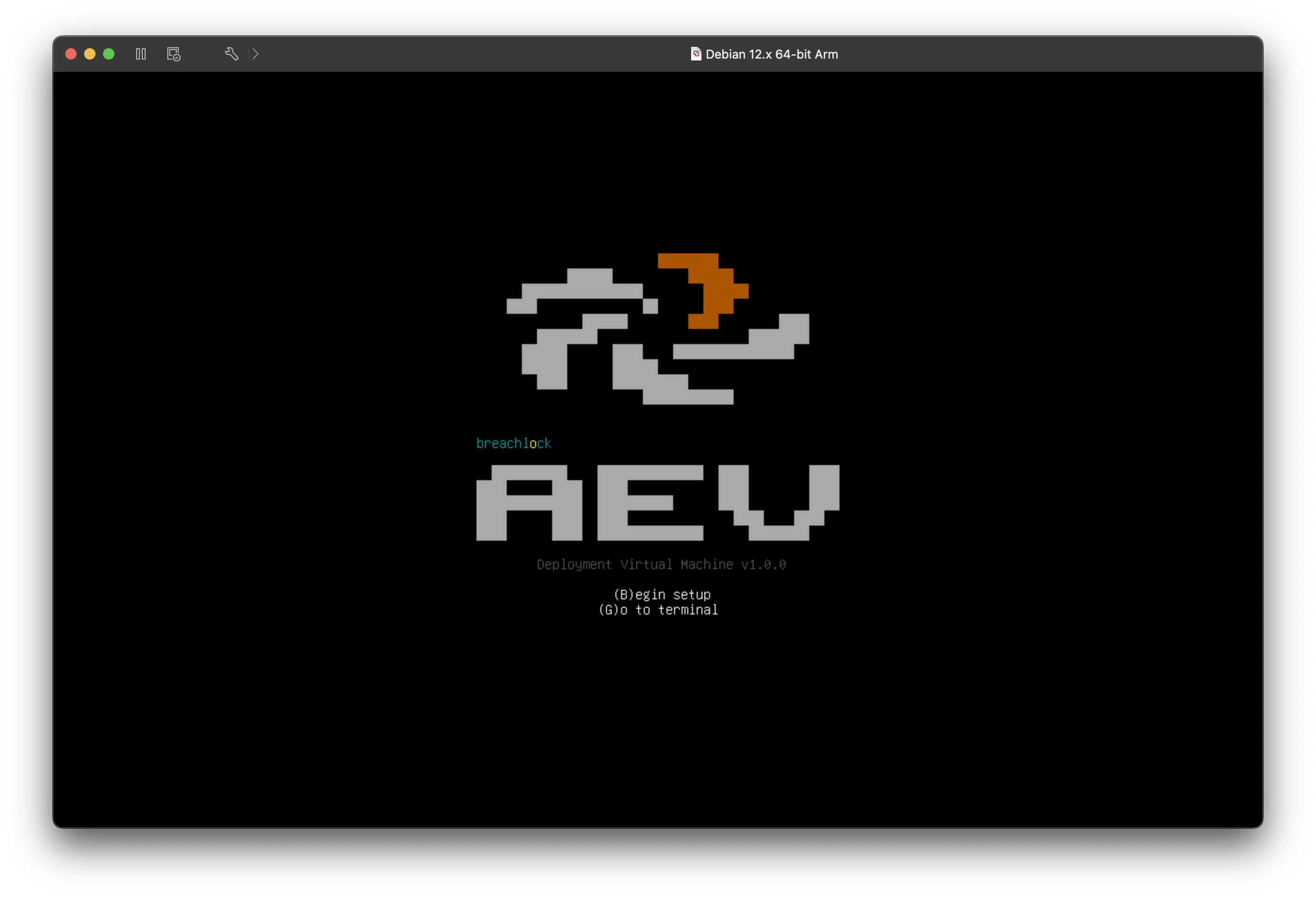
Select Begin setup to proceed with the guided configuration.
Step 4: Accept License Agreement
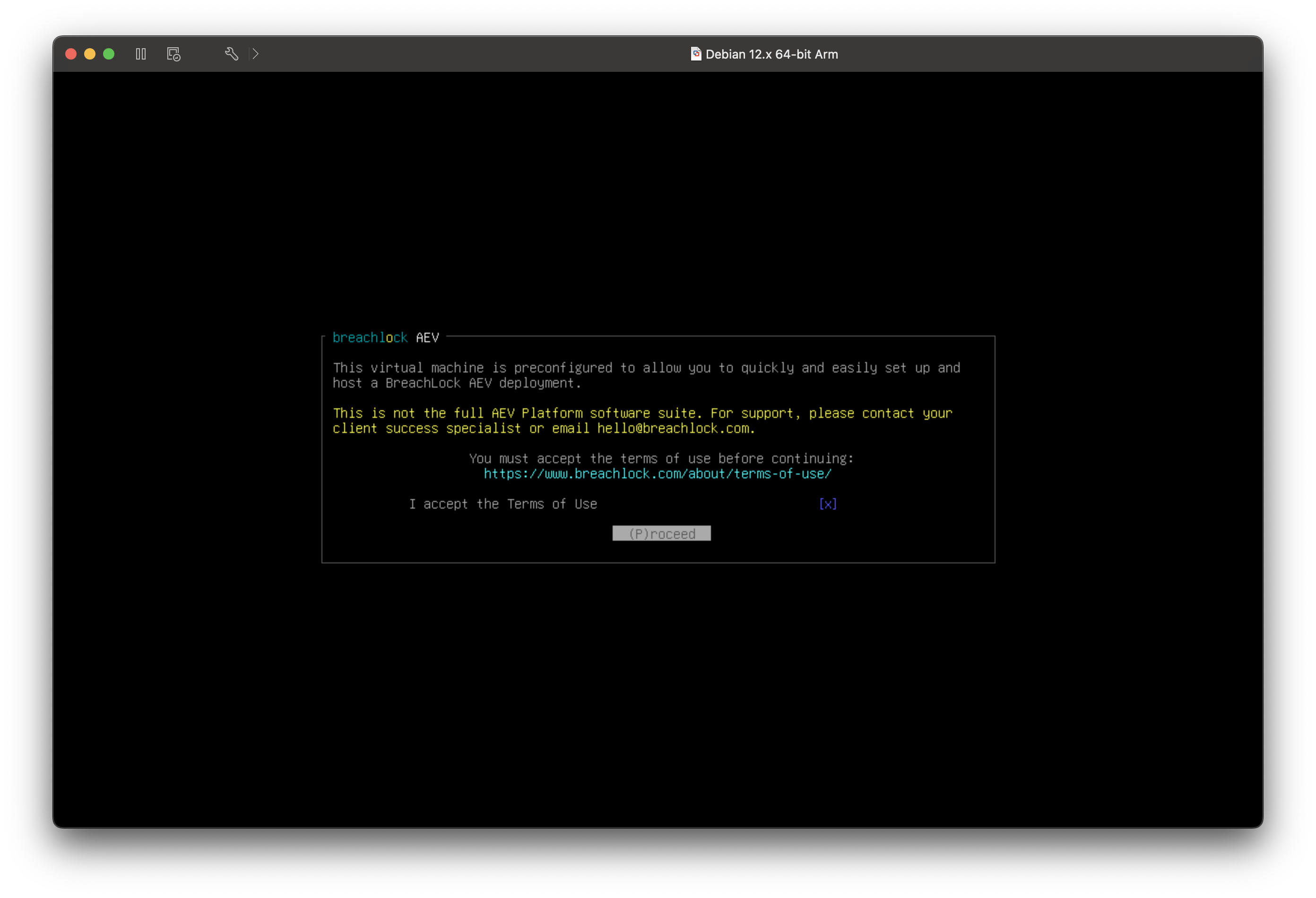
Review the Breach360 license agreement. You must accept the terms to continue with the setup process.
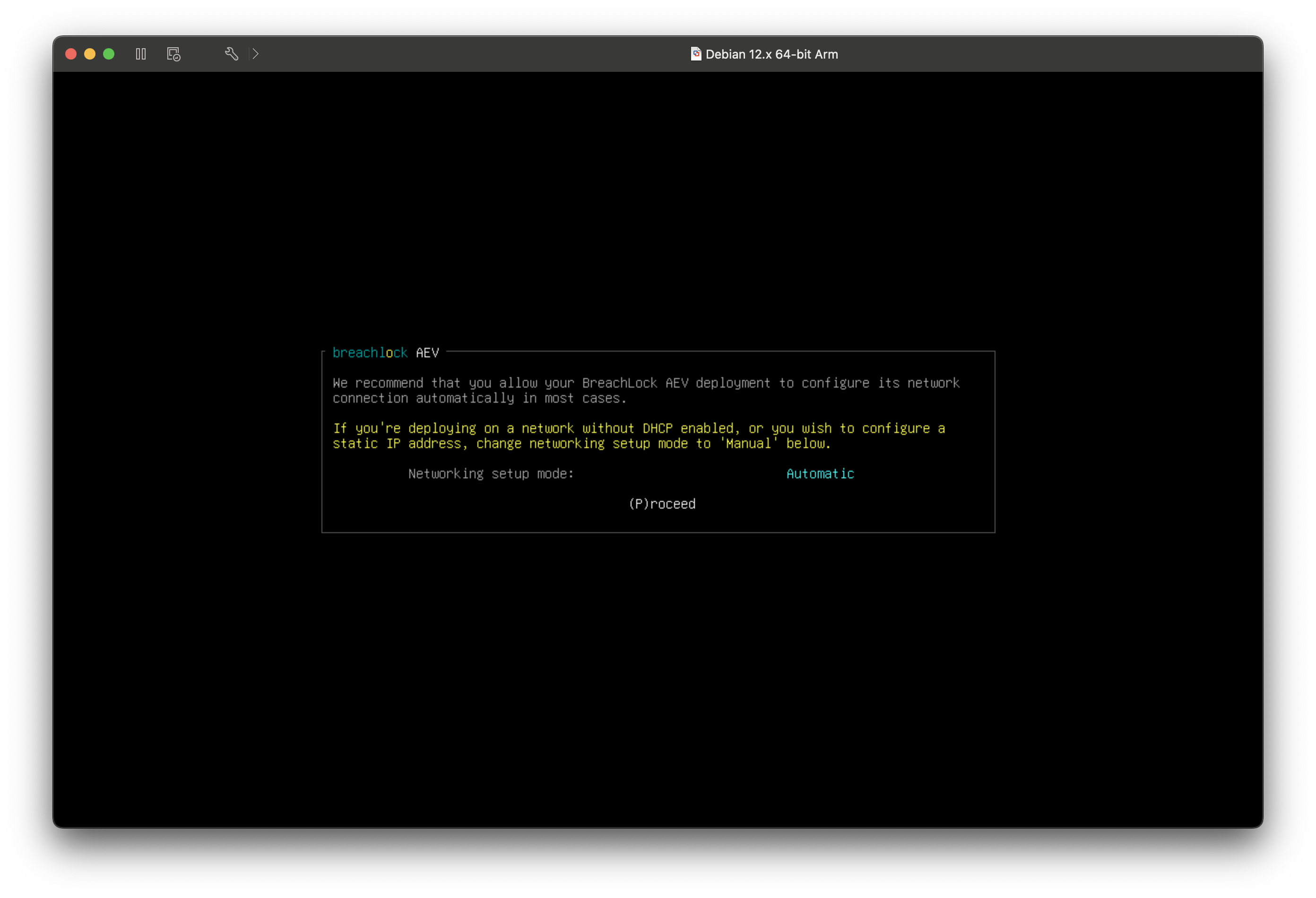
Step 5: Configure Network Mode
Choose your network configuration mode:
- Automatic (default) – Suitable for most networks with DHCP and DNS available. The system will automatically obtain network settings.
- Manual – Use this option if your network doesn't have DHCP/DNS, or if you need to configure a static IP address.
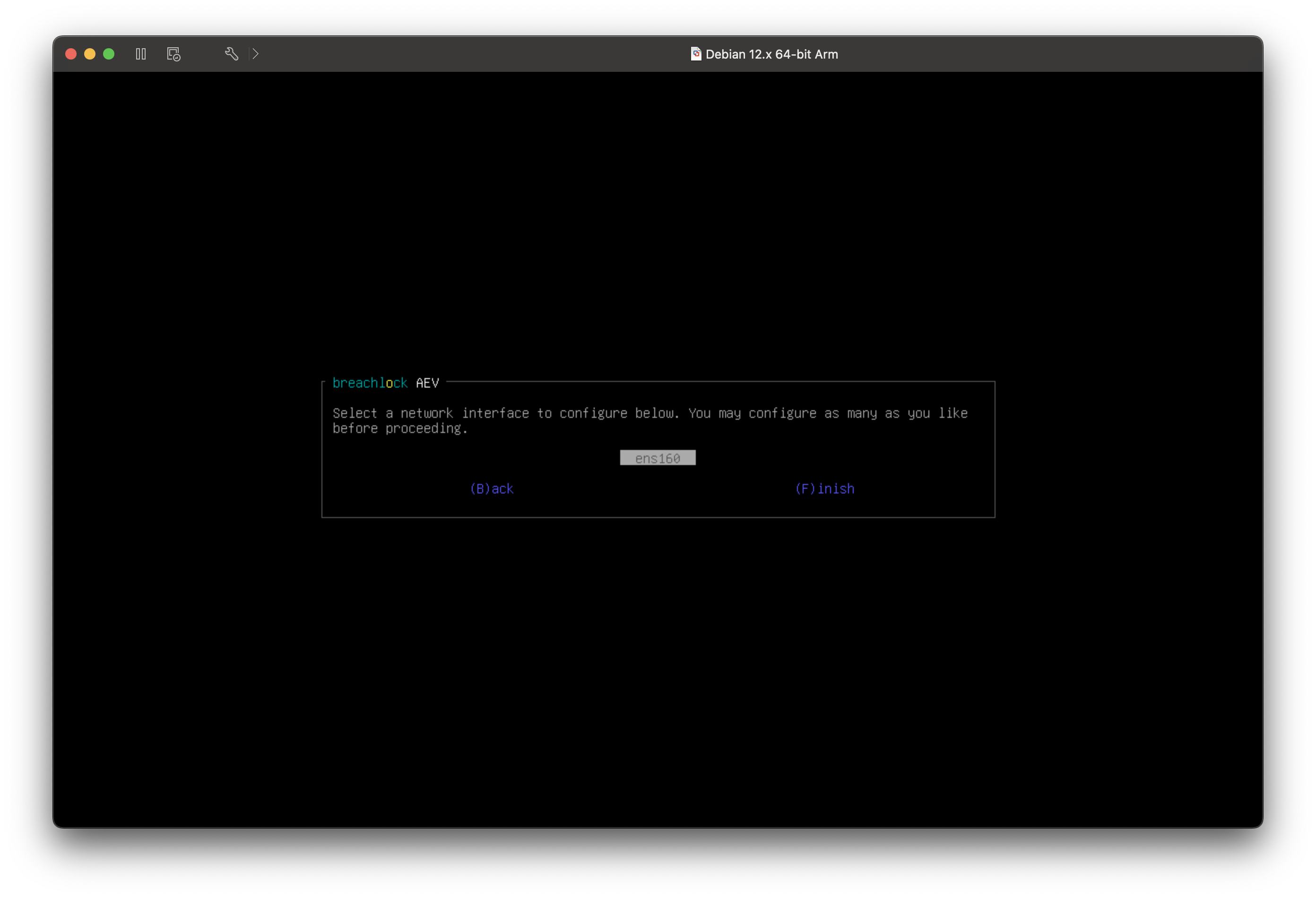
Step 6: Select Network Interface (Manual Mode Only)
If you selected manual network configuration, you'll see a list of available network interfaces on the virtual machine. Select the interface you want to configure.
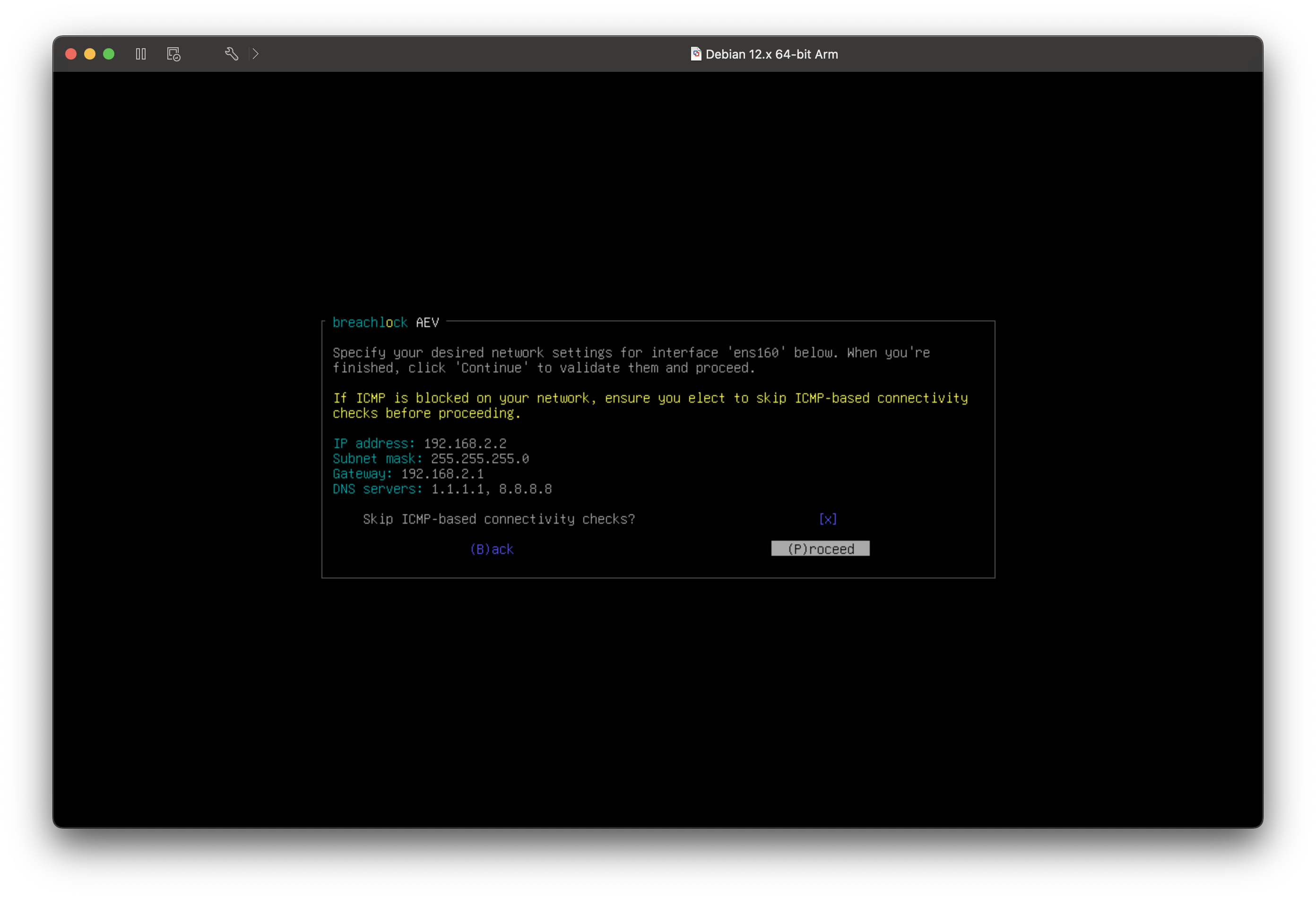
Step 7: Configure Network Settings (Manual Mode Only)
After selecting a network interface, configure the following settings:
- IP Address – The static IP address for the virtual machine
- Subnet Mask – The subnet mask for your network
- Gateway – The default gateway address
- DNS Servers – One or more DNS server addresses
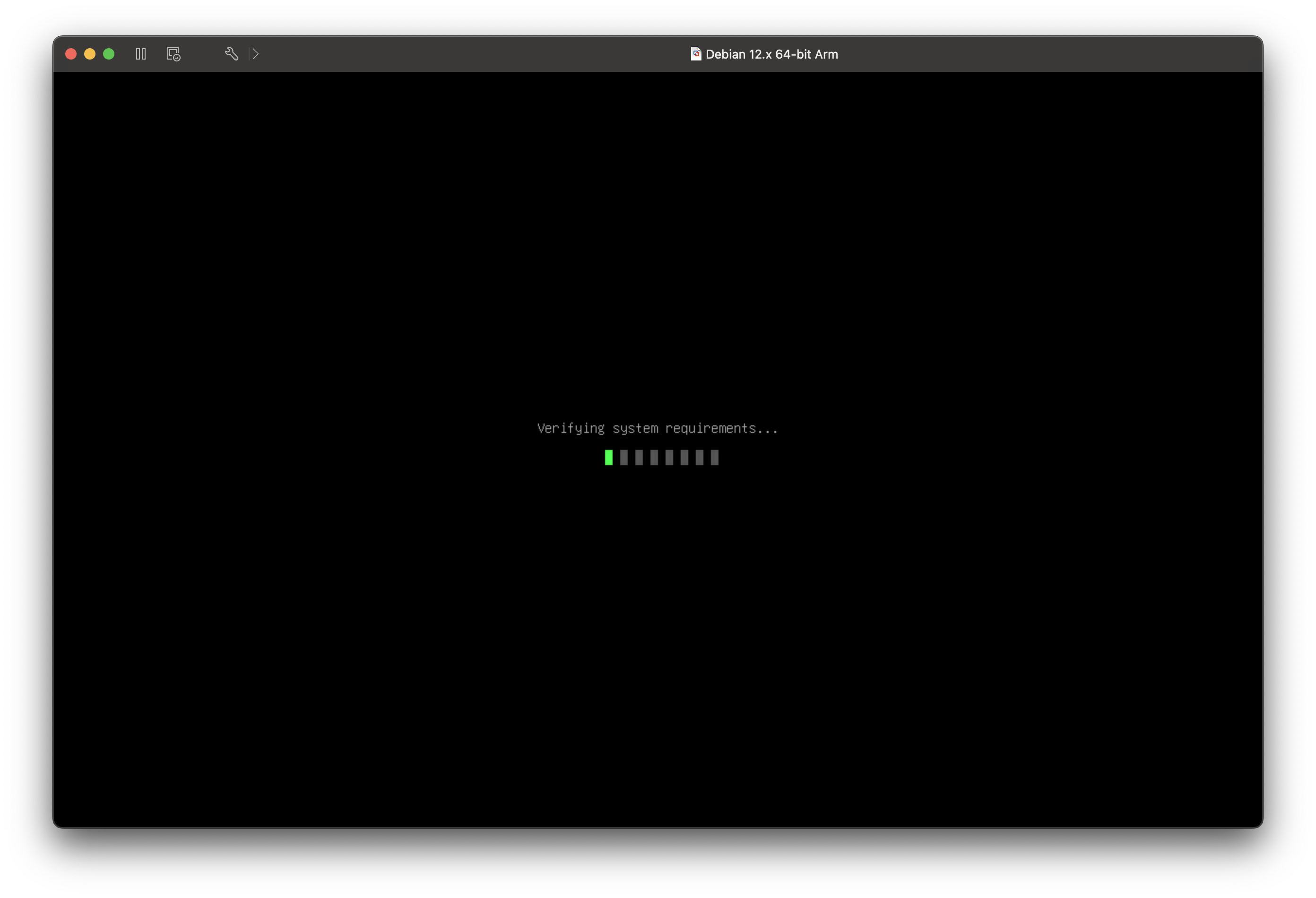
Step 8: System Requirements Check
The setup program automatically checks whether the virtual machine meets the minimum system requirements for Breach360. This verification ensures your deployment will run reliably.
Step 9: View System Requirements Results
Review the results of the system requirements check. The setup will verify:
- CPU specifications
- Available RAM
- Disk space availability
- Network connectivity
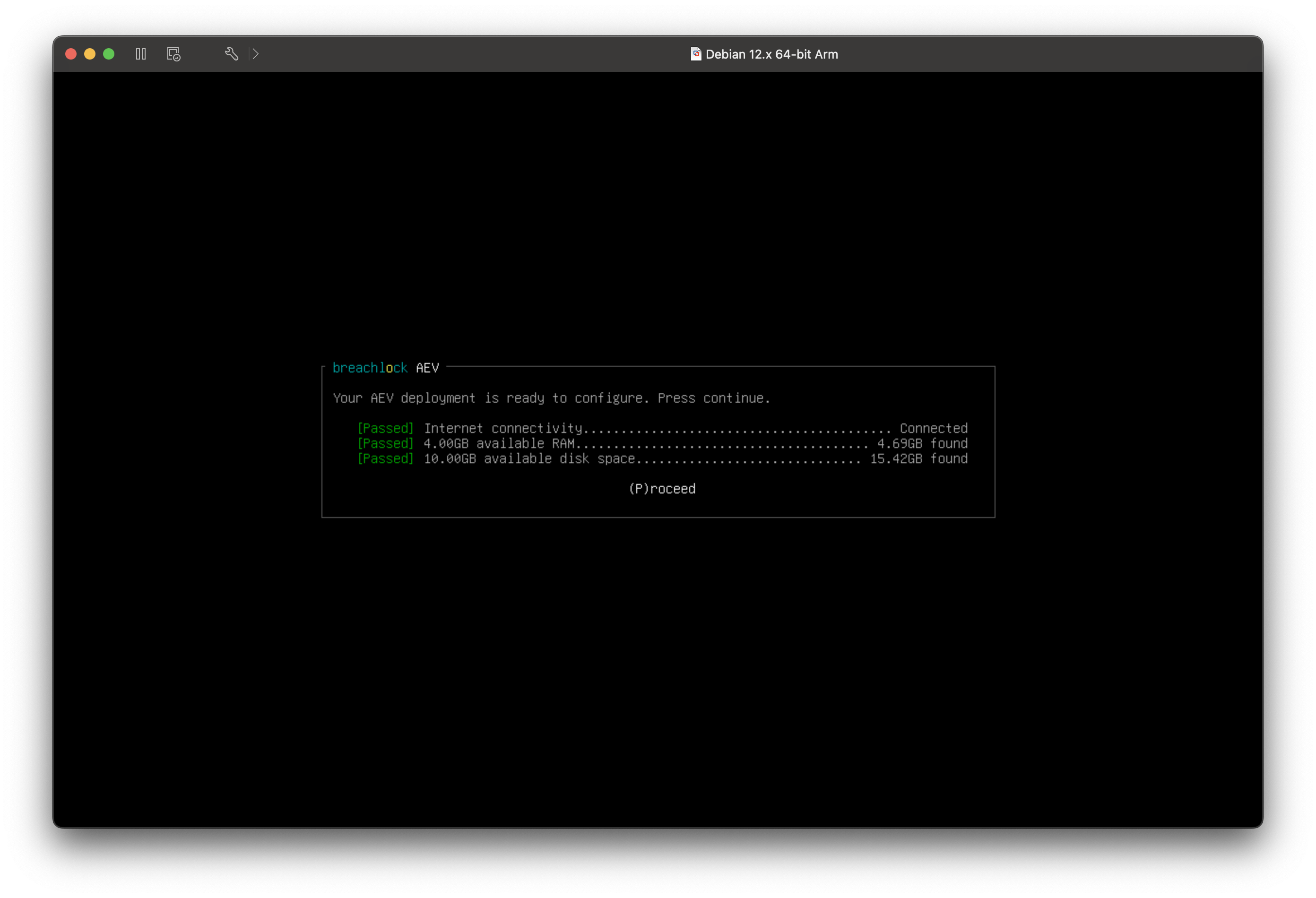
If any requirements are not met, you'll need to adjust the virtual machine's resources before proceeding.
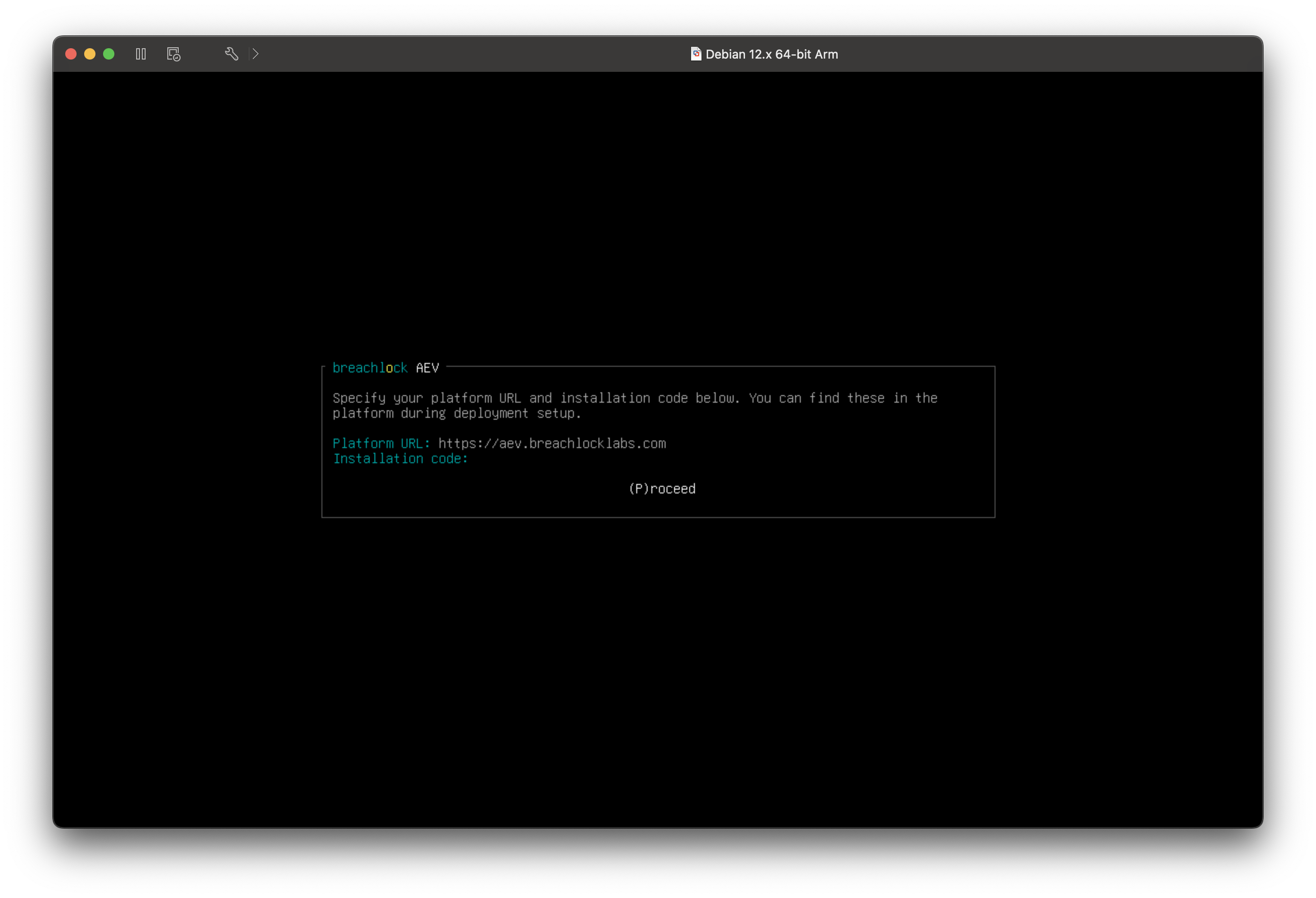
Step 10: Enter Pairing Code
Enter the pairing code that was displayed in the Breach360 platform when you downloaded the OVA file (see Step 2). This code links the OVA deployment to your Breach360 account.
Step 11: Configure Breach360 Foothold
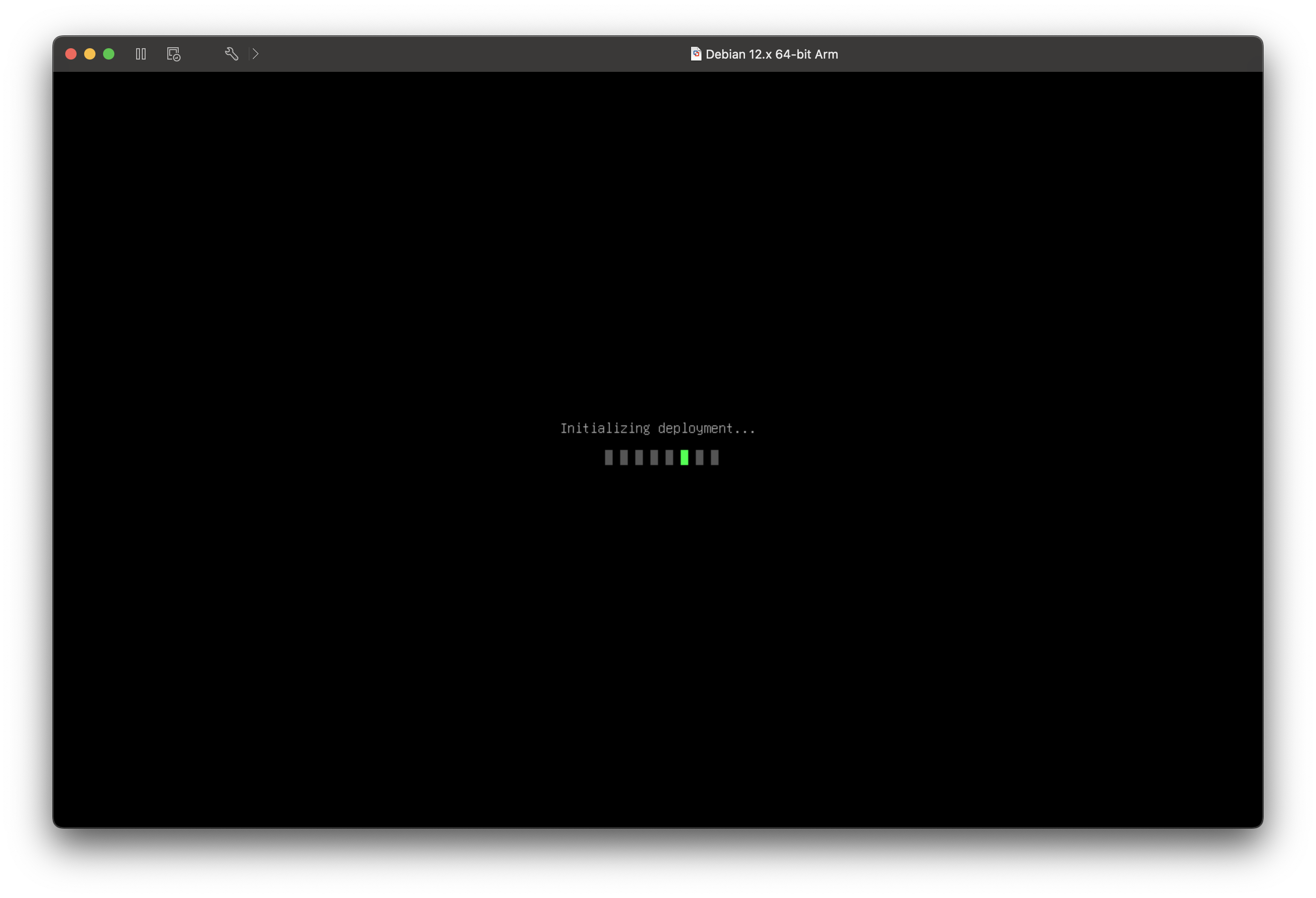
The setup program will now configure the Breach360 foothold on the OVA. This process installs and configures the necessary components to establish communication with the Breach360 platform.
Step 12: Setup Complete
Once configuration is complete, you'll see a success screen confirming that your OVA deployment is ready. You can choose to:
- Go to terminal – Access the command line for any additional manual configuration if needed
- Exit the setup program
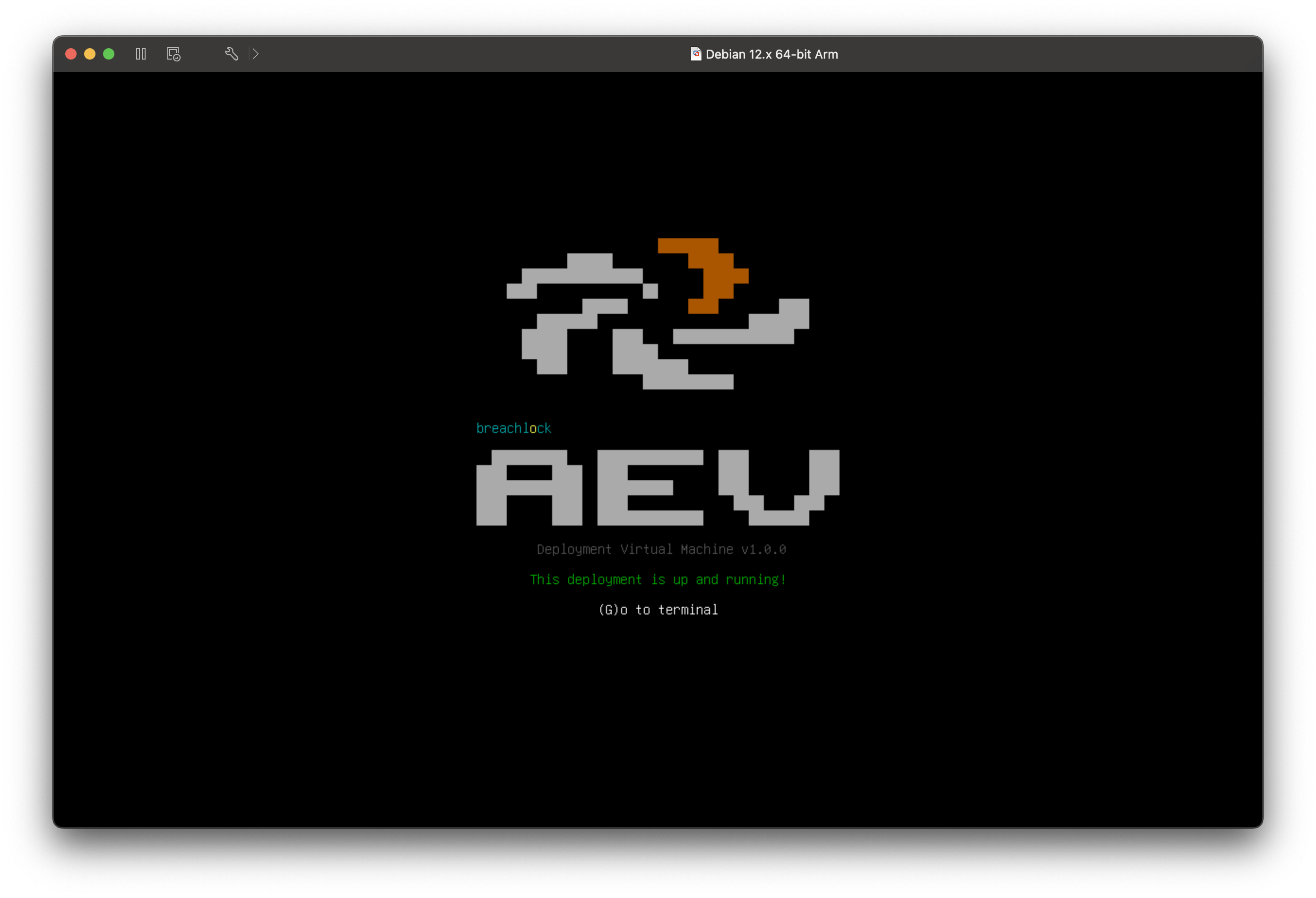
Your OVA deployment should now appear in the Breach360 platform with a Ready status, indicating it's operational and ready to run engagements.
Troubleshooting OVA Deployment
If your OVA deployment doesn't appear as Ready in the platform:
- Verify that the virtual machine has internet connectivity
- Ensure the required outbound domains are accessible (see Foothold Setup Guide)
- Check that the pairing code was entered correctly
- Review the system requirements to ensure all minimum specifications are met
For anything the list above does not cover, see the Troubleshooting section — in particular Fixing network settings on the OVA appliance and The pairing code is rejected.
Need help with OVA deployment? If you run into any issues or have questions while setting up an OVA deployment, the BreachLock team is here to help. Reach out to your BreachLock representative for assistance or email us at support@breachlock.com.