License Management
The Licenses page gives you a single view of the testing capacity available to your organization. A license behaves like a pool of credits with limits on how it can be used across engagements: it controls how many assets you can test, how many engagements you can run in parallel, and how long that capacity stays available. Use this page to see how capacity is being consumed, plan upcoming engagements, and avoid surprises during engagement creation.
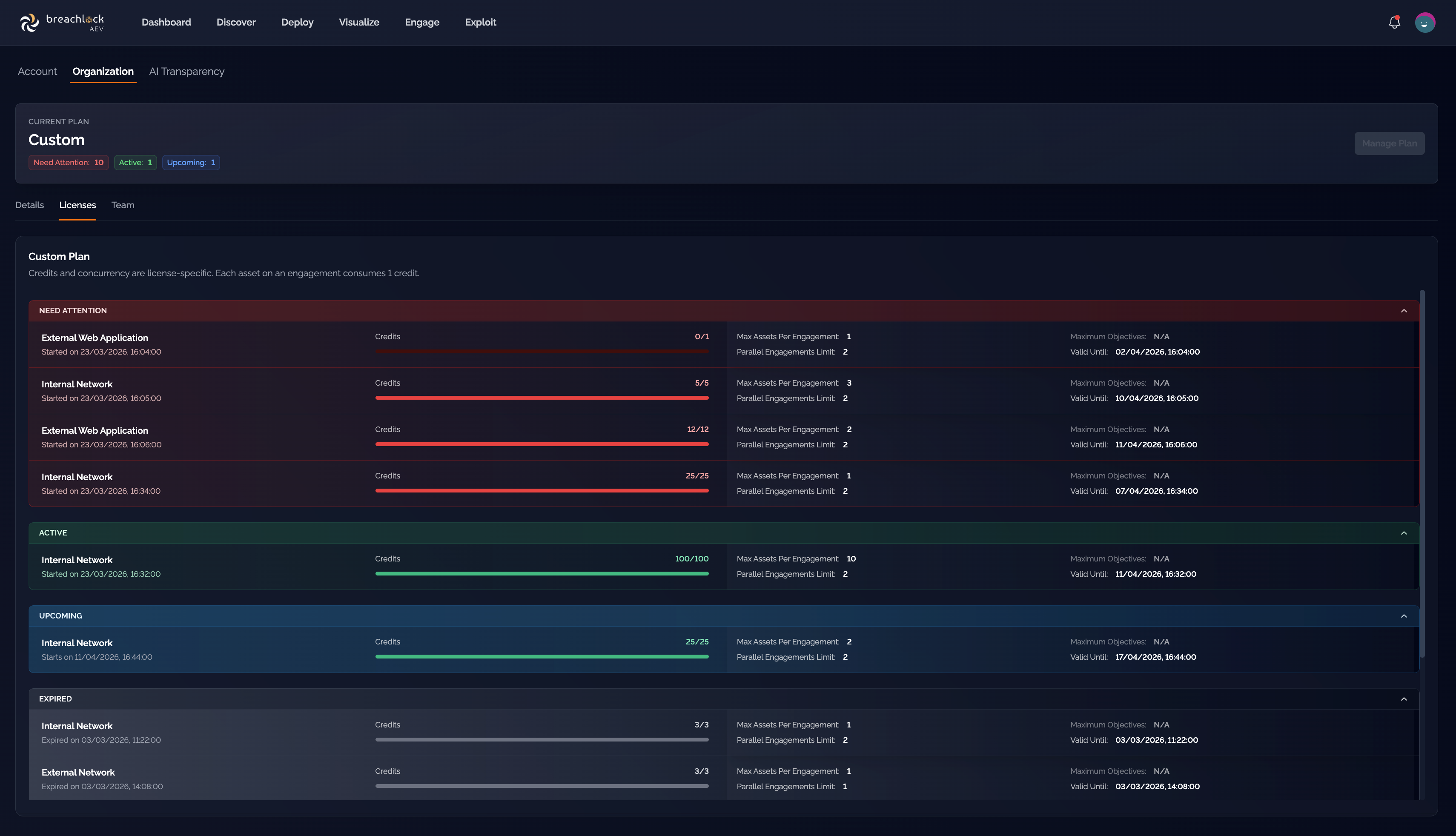
You can find the Licenses page under Organization → Licenses.
How Licenses Work
Each license is associated with a specific engagement type (for example, Internal Network or External Web Application) and determines how that type can be used:
- Validity Period – The start and end dates that define when the license can be used.
- Credits – The consumption unit. One asset tested in an engagement consumes one credit.
- Max Assets per Engagement – The maximum number of assets you can include in a single engagement of that type.
- Parallel Engagement Limit – How many engagements of that type can run at the same time.
When you have more than one license of the same type, the platform treats them as a unified pool. The Max Assets per Engagement and Parallel Engagement Limit applied at engagement creation are the highest values across your active licenses of that type, so you always get the maximum capacity available without managing individual licenses by hand.
License Categories
Licenses are grouped by their current state so you can quickly see what's usable, what's coming, and what needs attention:
- Active – Currently valid and available for use.
- Upcoming – Scheduled to become active in the future.
- Expired – No longer valid and cannot be used.
- Needs Attention – Requires user action, typically because credits are running low or the license is near expiry.
License Details
Each license entry shows:
- License type (e.g. Internal Network, External Web Application)
- Start date and validity period
- Credits consumed against total available
- Maximum assets allowed per engagement
- Parallel engagement limit
- License status (Active, Upcoming, Expired, Needs Attention)
This gives you a quick read on current usage, remaining capacity, and upcoming availability.
How Credits Are Consumed
Credits are deducted based on the number of assets included in an engagement, with 1 asset = 1 credit.
When you have multiple active licenses of the same type:
- All active licenses are considered together as one pool.
- Credits are deducted from the license that expires soonest first, then in ascending expiry order.
- The asset and parallel limits are taken from the license offering the highest value.
Example: How credits are consumed across two licenses
Consider the following Internal Network licenses:
License Type Asset Limit Parallel Engagement Limit Credits Expires In Internal Network 5 5 100 4 days Internal Network 20 3 10 2 days You create an Internal Network engagement with 20 assets.
Limits applied at creation:
- Asset selection limit: 20 (highest across the two licenses)
- Parallel engagement limit: 5 (highest across the two licenses)
Credit consumption:
- 10 credits are consumed from the license expiring in 2 days (it goes first because it expires sooner).
- The remaining 10 credits are consumed from the license expiring in 4 days.
Result: 20 credits consumed in total, 90 credits remaining, with the effective expiry now driven by the 4-day license.
Plan-Based Restrictions
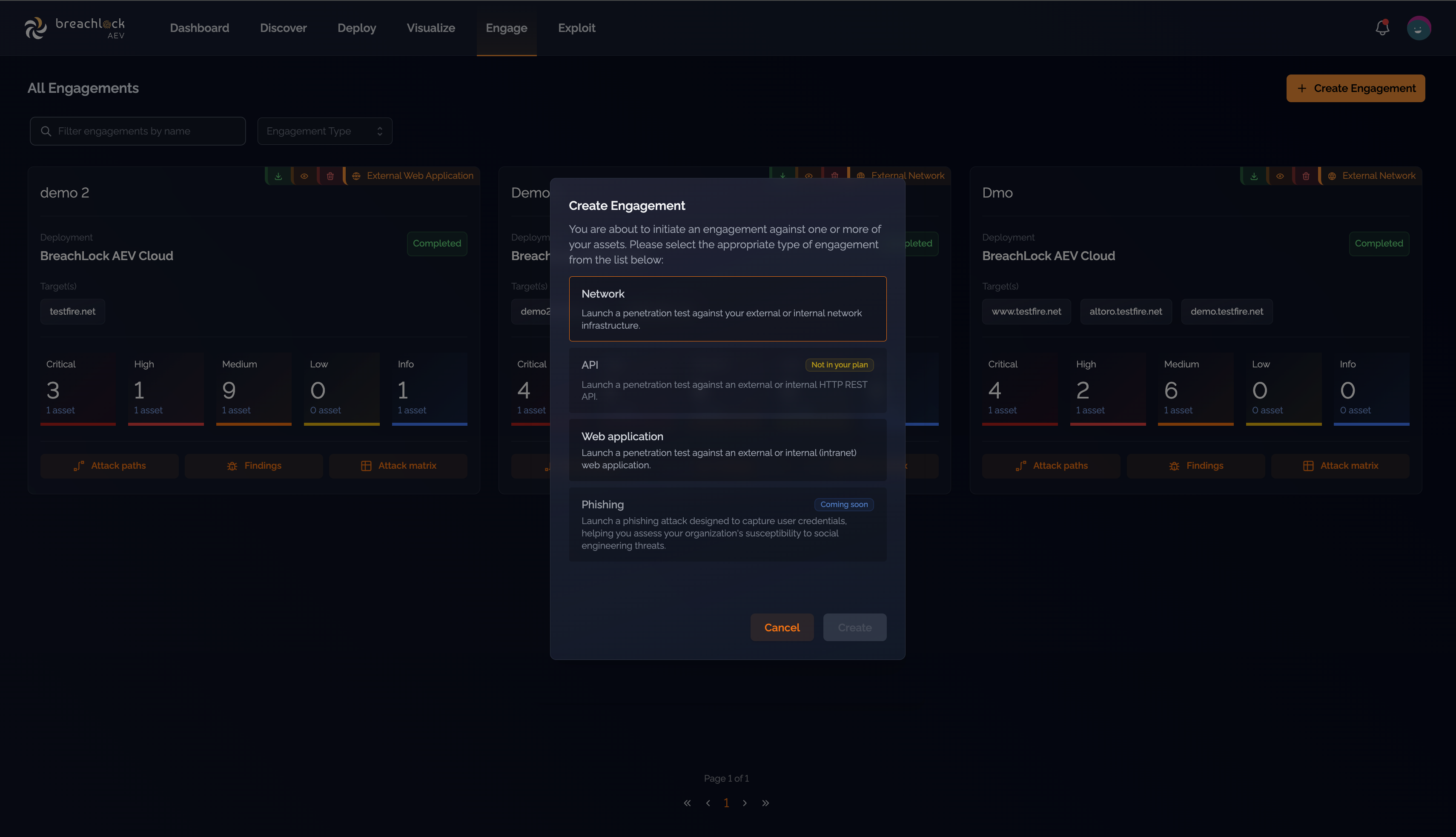
Engagement types that aren't part of your plan are disabled during engagement creation and shown with a "Not in your plan" tag. This makes it clear which engagement types your subscription supports before you start configuring an engagement.
Credit Visibility
The Licenses page shows total credits available for each license type, how many have been consumed, and how many remain. Expired licenses are clearly marked and cannot be used.
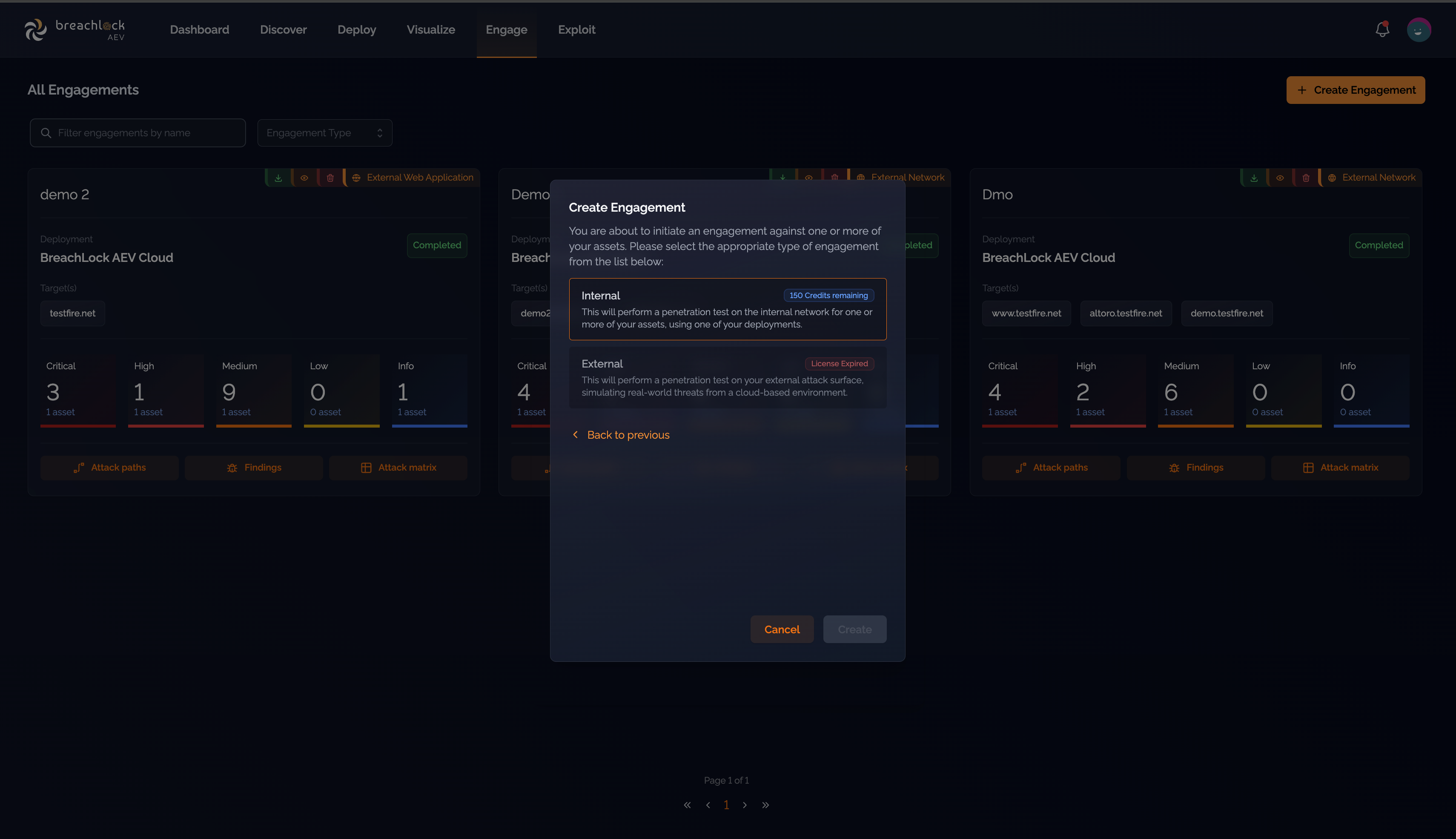
This gives you the visibility needed to plan engagements ahead of time and avoid interruptions mid-assessment.
Best Practices
- Act on "Needs Attention" proactively. Review licenses with low credits or nearing expiry regularly so they don't interrupt active or planned engagements.
- Plan engagements against capacity. Align engagement size and timing with available credits, asset limits, and parallel execution capacity to avoid failures during setup.
Common Scenarios
- Insufficient credits – Reduce the number of assets in scope, or select a license type with more available credits.
- Parallel limit reached – Wait for an active engagement to complete, or stop an ongoing engagement before starting a new one.
- Unable to create engagement – Check whether the license is expired or not part of your plan, and verify asset count, concurrency limits, and license validity.
Need help? If you have questions about your licenses or need additional capacity, reach out to your BreachLock representative or email us at support@breachlock.com.