Platform Overview
This guide will help you navigate the Breach360 platform and get familiar with its key features. You'll learn how to access different sections, understand your security posture, and start running security engagements for your organization.
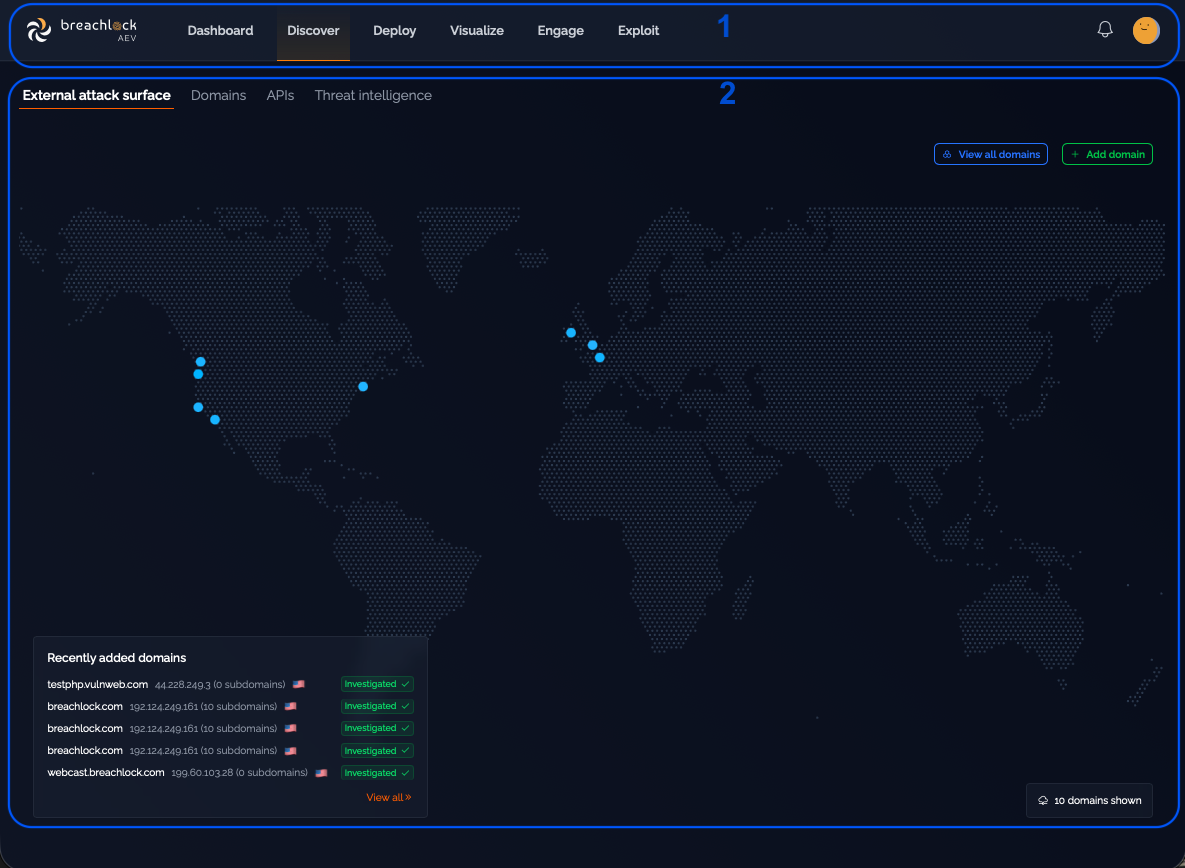
The top navigation bar gives you quick access to all the main features of Breach360. Each section covers a different aspect of security testing—from discovering assets to running engagements and viewing results. The content on each page updates dynamically based on your selections in the navigation and within the page itself.
Navigation
Here's a quick overview of how to navigate the Breach360 platform:
Top Navigation:
- Dashboard – Your security overview and metrics
- Discovery – Discover and manage your external-facing assets
- Deploy – Create and manage deployments
- Visualize – View your network topology and attack surface
- Engage – Create and manage security engagements
- Exploit – Advanced exploitation features
- User settings and preferences – Manage your account and preferences

Dashboard
The Dashboard provides a comprehensive overview of your security posture at a glance. It displays real-time information from your automated security tests, giving you immediate insight into your organization's security status and helping you identify areas that need attention.
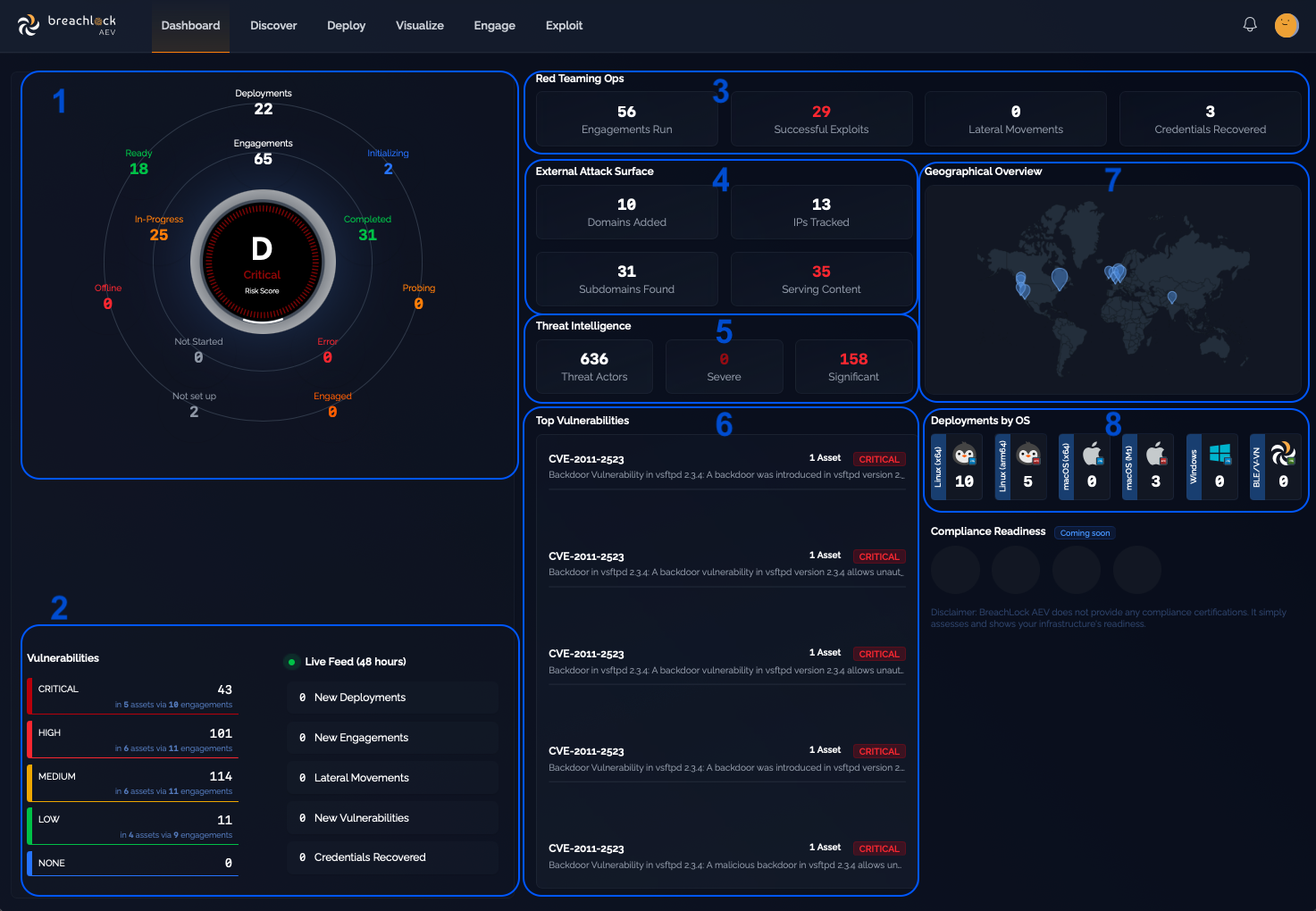
The dashboard includes:
- Deployment Status – Visual status of all your Breach360 deployments
- Vulnerability Summary – A chart showing vulnerabilities categorized by severity
- Red Team Metrics – Performance metrics from your security testing operations
- External Discoveries – Findings from continuous external scanning
- Threat Monitoring – Active threat monitoring and categorization
- Top Vulnerabilities – Most common or widespread vulnerabilities and their severities
- Geographic Heatmap – Map showing where your engagements or assets are located
- Deployment Summary – Number of deployments by operating system
Discover
The Discover page helps you understand and manage your externally facing domains. It provides real-time discovery information, investigation status, and geographic mapping to give you a clear picture of your attack surface.
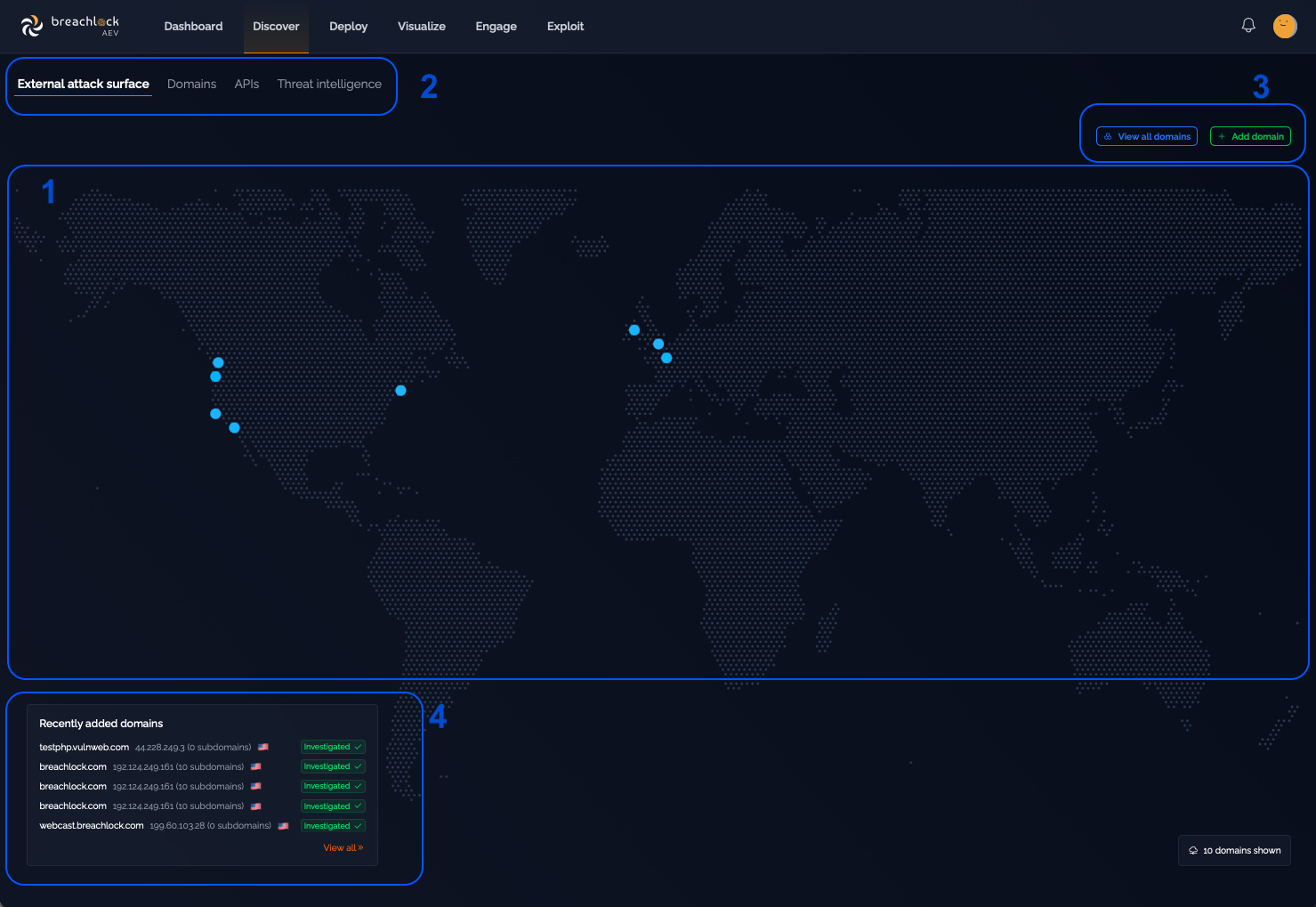
The Discover page includes:
-
Global Map – A world map showing where your internet-facing assets are located. Blue markers represent domains you've added to your attack surface inventory. Markers are placed based on the geolocation of the associated IP addresses.
-
Discovery Tabs – Switch between different discovery modules using the tabs at the top.
-
Domain Management – Control your domain inventory:
- View All Domains – Opens your complete domain inventory
-
Add Domain – Manually add new domains to monitor
-
Recently Added Domains – A panel at the bottom-left shows the most recent domains you've added.
Threat Intelligence
The Threat Intelligence page helps you understand who might target your organization, how they operate, and why they pose a risk. It combines threat intelligence and risk rankings to help you anticipate and defend against active threat actors targeting organizations like yours.
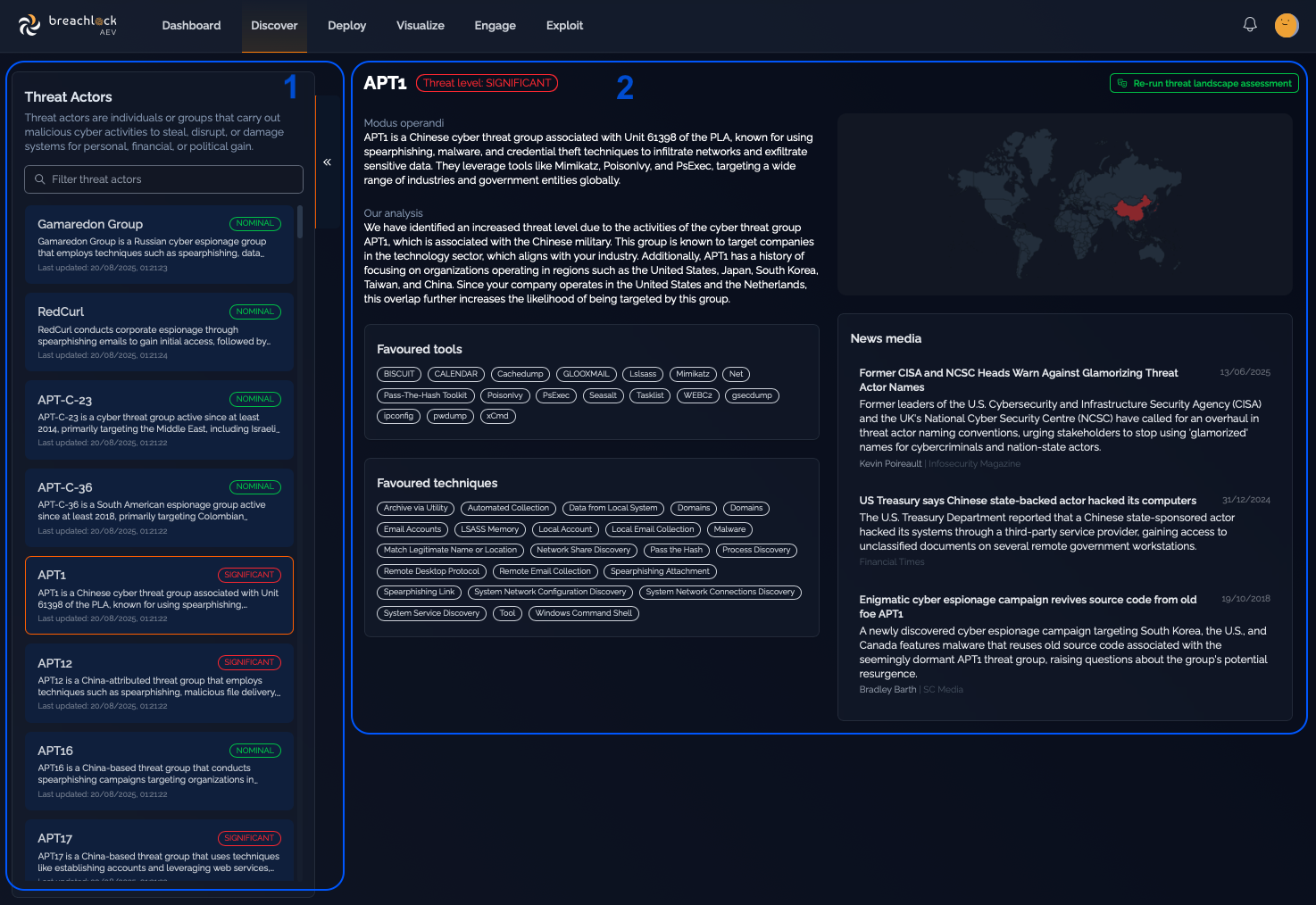
The Threat Intelligence page includes:
-
Threat Actor List – A scrollable list of all threat actors that BreachLock tracks. You can quickly scan through adversaries that may be relevant to your organization.
-
Threat Actor Details – When you select a threat actor from the list, you'll see details about their favored tools and techniques. If no threat actor is selected, you'll see: "No threat actor selected -- Select a threat actor on the left to view the details and severity."
More documentation coming soon
We're actively expanding our documentation to cover more features and capabilities of the Breach360 platform. Additional guides and detailed instructions for other platform sections will be available soon. If you need help with features not yet documented, please reach out to your BreachLock representative or email us at support@breachlock.com.