Engagements
The Engagements page shows all your security engagements in one place. Each engagement card summarizes test results, vulnerability findings, and available analysis tools, helping you quickly review results from both internal and external engagements and understand your security posture.
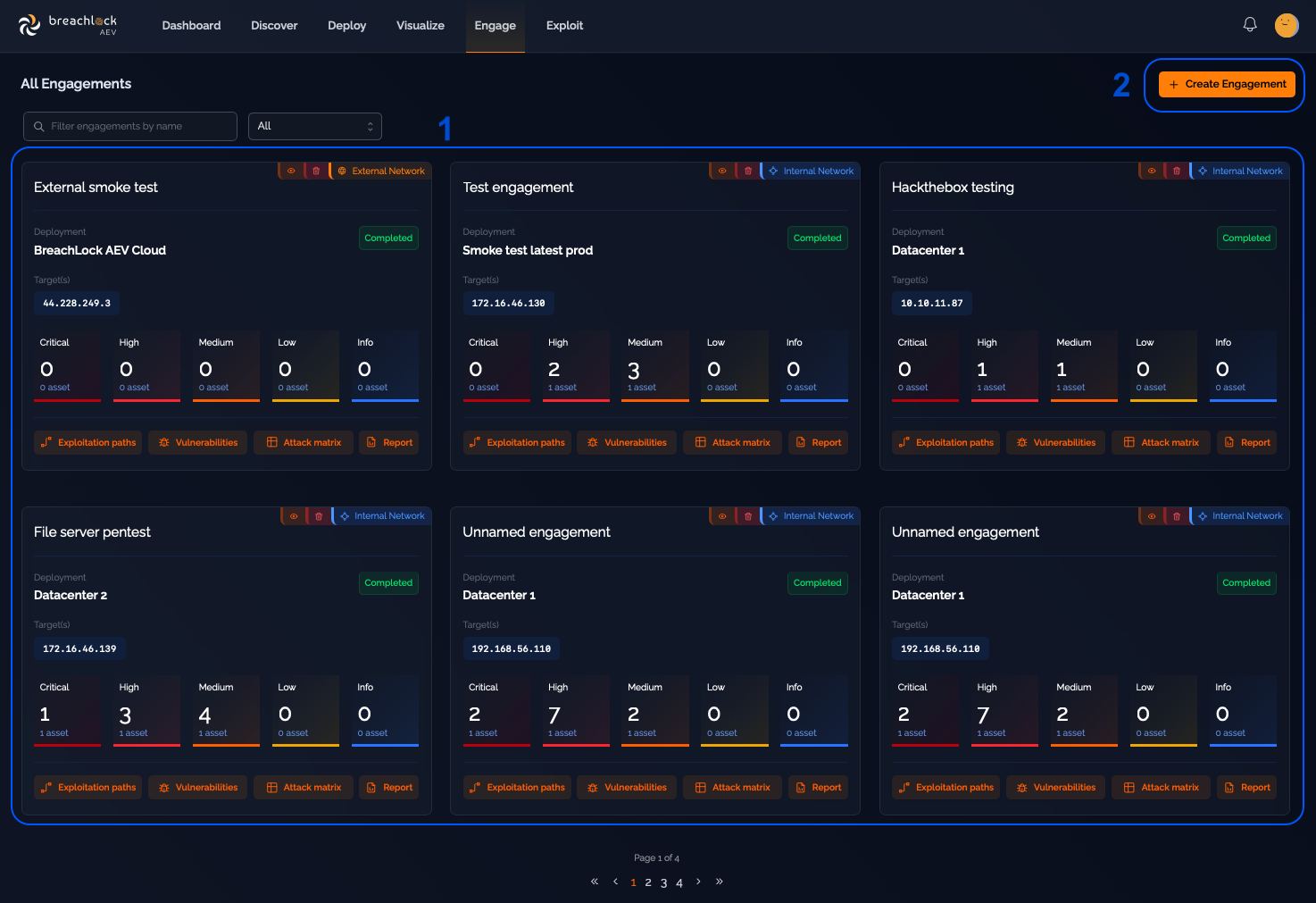
Engagements are displayed as cards in a grid. Each card shows:
-
Engagement Name – The name you gave the engagement
-
Engagement Type Badge – Shows what the engagement targets and where it runs from. Each combination has its own colour:
- Internal Network
- External Network
- Internal Web Application
- External Web Application
-
Deployment Used – Which deployment ran the engagement, including its name and configuration
-
Status – Whether the engagement is complete and ready for review
-
Targets – The IPs, subnets, or web assets that were tested
-
Vulnerability Summary – Severity breakdown of vulnerabilities found:
Severity Displayed As Meaning Critical Blood Red Highest-risk vulnerabilities enabling compromise High Red Severe security weaknesses Medium Orange Moderate weaknesses Low Yellow Informational or minor findings Info Blue Non-risk informational insights -
Available Actions – Ways to view engagement results:
- Exploitation Paths – See how vulnerabilities could be chained together in an attack
- Vulnerabilities – View a complete list of vulnerabilities found
- Attack Matrix – See findings mapped to frameworks like MITRE ATT&CK
- Reports – Download comprehensive reports with findings, vulnerability details, remediation recommendations, and attack path visualizations
-
Create Engagement – Start a new security engagement
Create Engagement
Creating an engagement lets you run targeted security tests against your internal or external assets using one of your active deployments. When you create an engagement, you define what will be tested, where the test runs from, and what scope or rules apply.
After you create an engagement, Breach360 automatically runs the assessment, identifies vulnerabilities, maps exploitation paths, and generates a report with actionable remediation guidance.
Prerequisites
Before creating an engagement, make sure:
- The deployment you want to use is in the Ready state. Engagements cannot be launched from deployments that are Offline or Unavailable.
- No other engagement is actively running on the same deployment. A deployment can execute only one engagement at a time.
Select Engagement Type
A Breach360 engagement is defined along two axes: what kind of asset you want to test, and where the test runs from.
Target type – Choose between Network and Web Application engagements:
- Network engagements assess hosts, services, and infrastructure across IPs and subnets. The remainder of this page describes the network engagement flow end-to-end.
- Web Application engagements assess a single web application using a real browser, with coverage modelled on the OWASP Top 10. The configuration wizard is the same except for scope and authentication — see Web Application Pentesting for the web-specific details, and refer back to the steps below for everything else.
[ENGAGEMENT TYPE NETWORK WEB]
Direction – Independently of target type, choose between Internal and External:
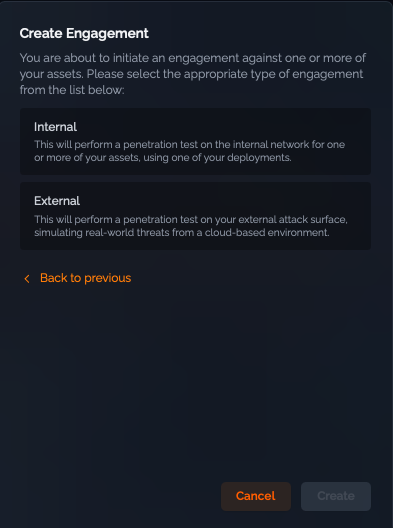
- Internal engagements run from one of your internal deployments to test assets reachable from inside your environment.
- External engagements simulate attacks from outside your organization, targeting your externally exposed assets.
Allowlist source IPs for external engagements
For external engagements — both Network and Web Application — assessment traffic reaches your in-scope public assets from BreachLock infrastructure on the internet. If you use a web application firewall, CDN access rules, IP allowlists, or similar controls on those assets, allow inbound traffic from all of the following addresses so testing is not blocked or miscategorized. Traffic may originate from any of them, so allowlist them all rather than picking one.
| IP addresses | Use |
|---|---|
131.189.166.82, 172.205.8.197 |
Source addresses from which external engagement traffic originates (all customers). |
9.141.187.111, 20.105.26.90 |
Proof-of-value (PoV) environments only—allow in addition to the primary addresses if you are a PoV customer. |
These addresses are for inbound traffic toward your exposed targets during external engagements. They are separate from foothold outbound requirements, which apply to the deployment host reaching BreachLock services and package mirrors.
Engagement Creation and Configuration
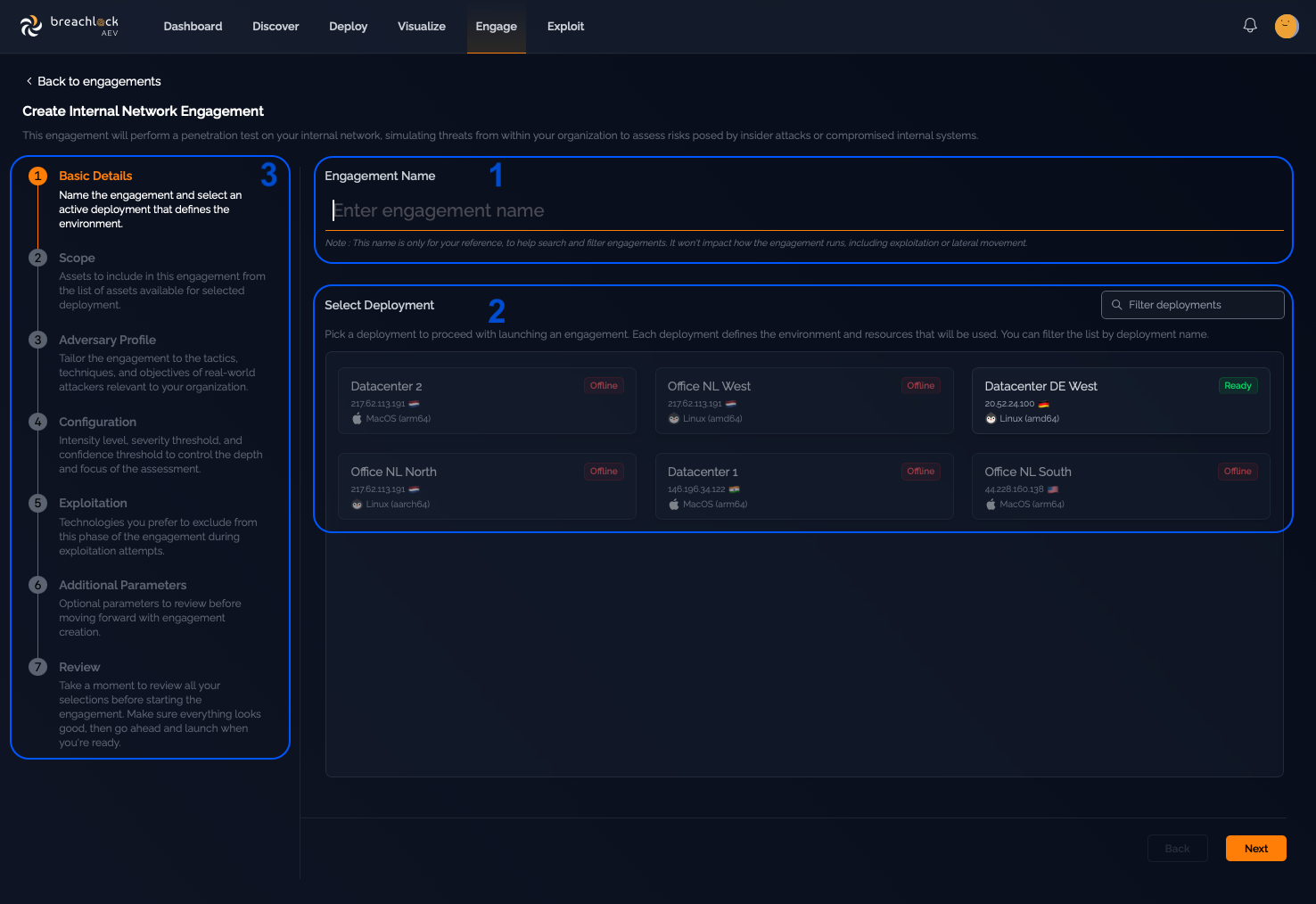
-
Engagement Name – Enter a name for the engagement to help you identify and organize it
-
Deployment Selection – Choose one active deployment from the list. Each deployment card shows:
- Deployment name
- IP address
- Operating system (Linux)
- Deployment status (Ready / Offline)
Only Ready deployments can run engagements.
-
Step Progress – The sidebar shows all the configuration steps:
- Basic Details
- Scope - Define which assets will be targeted.
- Adversary Profile - Select attacker tactics and behaviors.
- Configuration - Adjust intensity and depth of the assessment.
- Exploitation - Exclude or include technologies for exploitation attempts.
- Additional Parameters - Fine-tune optional controls.
- Review - Confirm all settings before launching.
This sidebar helps you see where you are in the process and what steps remain.
Scope
In the Scope step, you define which assets will be included in the assessment. Defining scope properly ensures the engagement focuses on the systems you want to test while following your organization's rules of engagement and security policies.
How scope works depends on the target type you chose:
- Network engagements scope across IPs, subnets, or specific CVEs, drawn from assets discovered by the chosen deployment. The rest of this section describes that flow.
- Web Application engagements scope to a single web asset, selected either from the Discover tab (external) or by adding a URL during the Scope step itself (internal). See Defining web scope for the details.
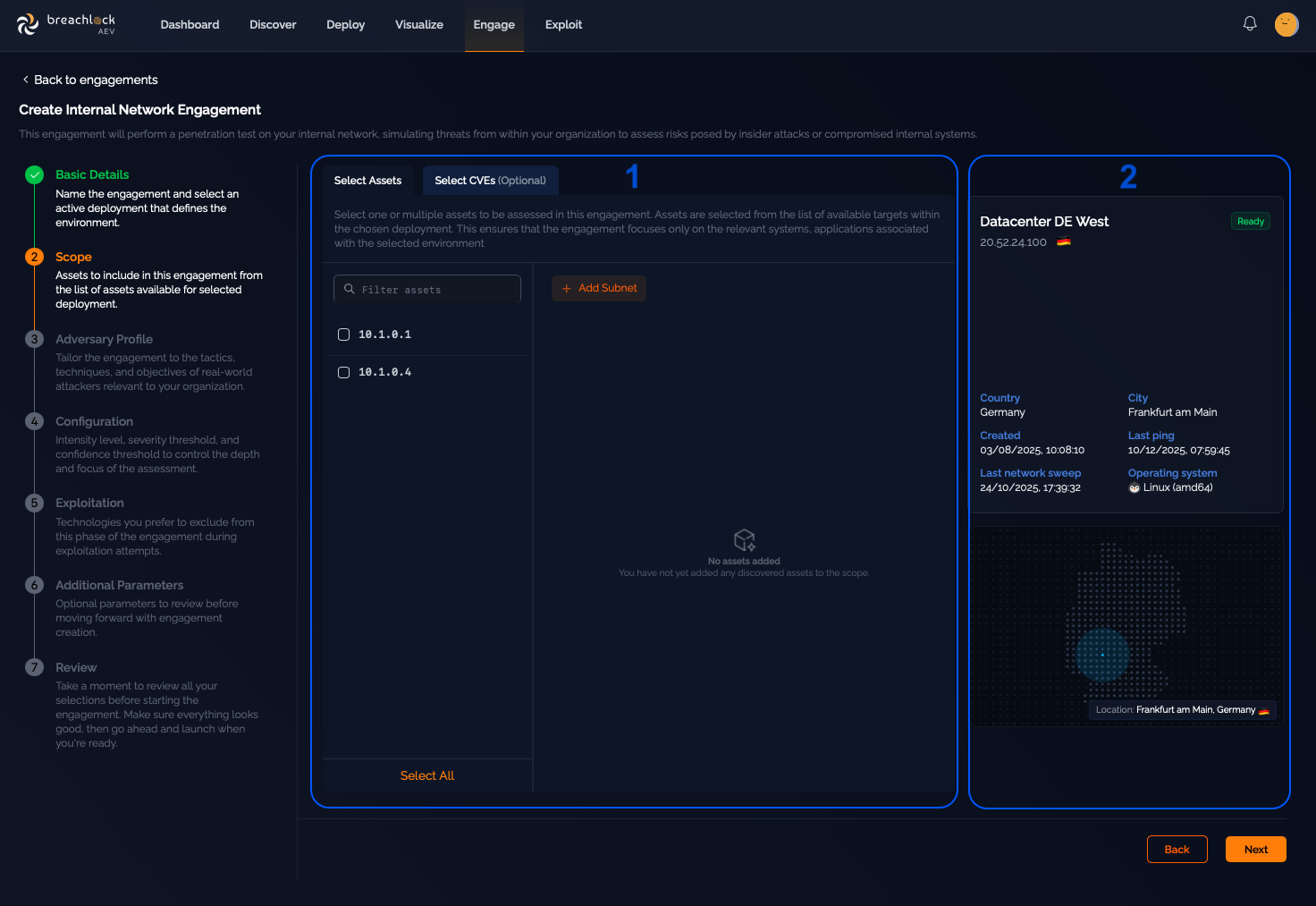
- Asset Selection Panel
- Asset Selection Tab – Shows all individual assets detected within the deployment's reachable network
-
Select CVEs (optional) – Scope the engagement around specific vulnerabilities instead of asset lists. Useful for testing specific CVEs or validating that you've fixed vulnerabilities
-
Deployment Summary – A summary of the selected deployment appears on the right side, showing you which environment will be tested. This helps confirm you're using the correct deployment.
You can scope an engagement in three different ways, depending on whether you want precise control, broad coverage, or focused vulnerability validation:
| Option | Description | Impact |
|---|---|---|
| Asset Selection | Select individual IPs discovered by the deployment | Precise and controlled testing |
| Subnet Selection | Include entire IP ranges or network segments | Broad coverage across the environment |
| CVE-Based Scope | Test only selected vulnerabilities | Focused validation and minimal disruption |
-
Asset Selection – Use this when you want to test specific IPs discovered within your internal network. It's the recommended choice for sensitive servers, validating critical assets, and running controlled production assessments. It minimizes unnecessary scanning, reduces operational impact, and suits change-controlled environments.
-
Subnet Selection – Use this when you want to assess entire network ranges. It's recommended for full internal security assessments, discovering shadow IT, and evaluating network segmentation. It helps identify the security posture of live IPs, detect lateral movement paths, and provides a broader understanding of exposure.
-
CVE-Based Scope – Use this when you want to test only selected vulnerabilities instead of scanning all weaknesses. It's recommended for validating patching efforts, verifying security advisories, and confirming exploitability of known risks. CVE-based scope detects the specified vulnerability, validates exploitability, confirms remediation status, executes faster, and minimizes network impact, making it suitable for production validation.
Common scope use cases
| Scenario | Recommended Scope |
|---|---|
| Validate a patch on a specific production server | Asset Selection + CVE-Based Scope |
| Safely assess critical infrastructure systems | Asset Selection |
| Perform a full internal security assessment across a network | Subnet Selection |
| Evaluate network segmentation and lateral movement exposure | Subnet Selection |
| Provide compliance evidence for remediation of known vulnerabilities | Asset Selection + CVE-Based Scope |
| Investigate a suspected compromised host | Asset Selection |
| Confirm organization-wide exposure to a newly disclosed vulnerability | Subnet Selection + CVE-Based Scope |
Select Adversary Profile (Optional Step)
In the Adversary Profile step, you can tailor the engagement to mimic the behavior, tactics, and goals of real-world threat actors. Selecting an adversary profile makes the assessment use techniques similar to attackers that may be relevant to your organization's threat landscape. Threat actor profiles are populated based on the threat landscape assessment of the network.
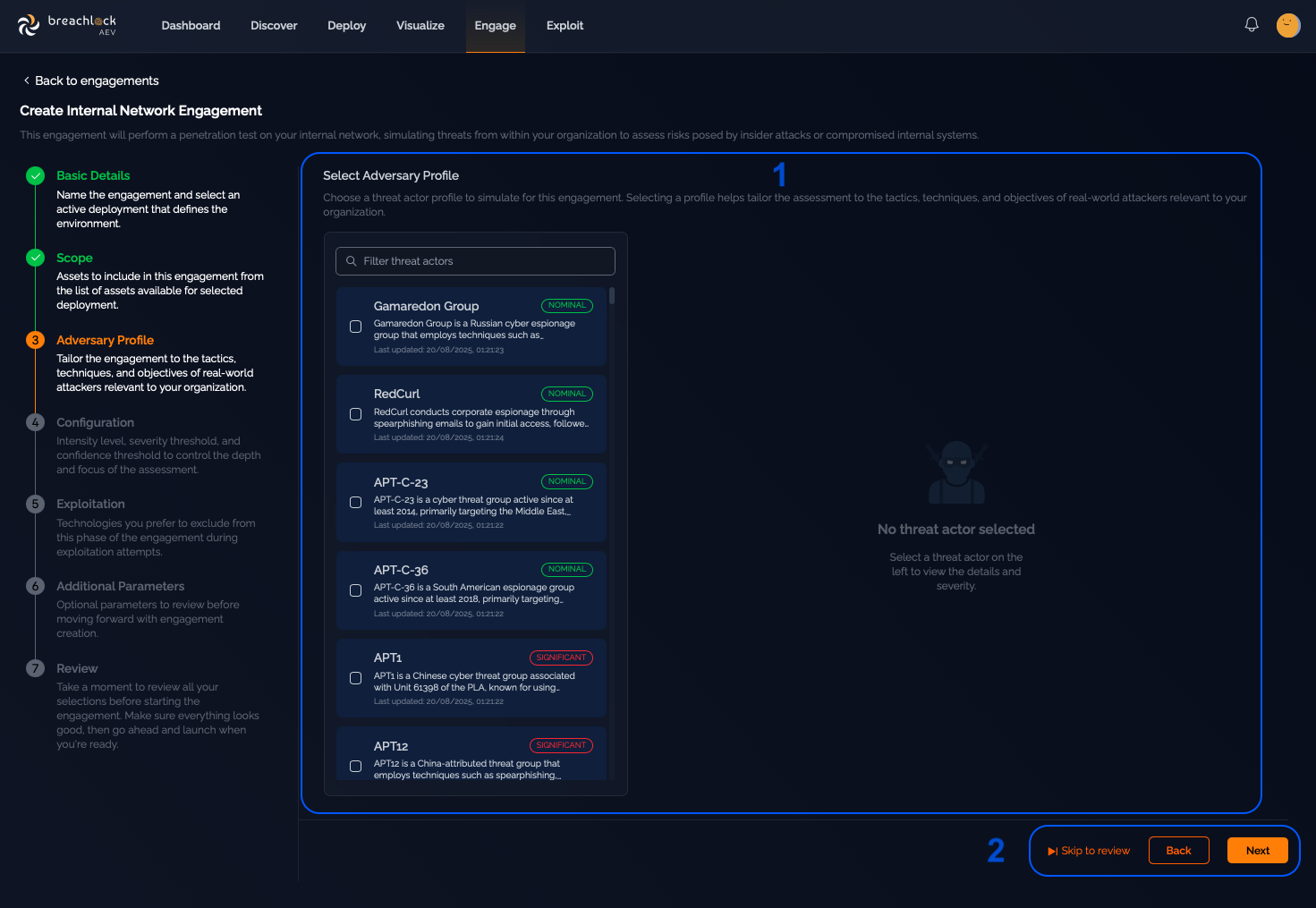
- Adversary Profile Selection - Choose one or more threat actor profiles to simulate. You can select a single profile or combine multiple to widen behavioural coverage. The selected profile affects:
- Techniques and tactics used during the engagement
- Attack sophistication level
- Behavioral patterns and objectives
- Lateral movement strategy
- Overall threat realism
Use the Filter threat actors search bar to quickly find relevant profiles by name or keyword.
- Navigation Controls:
- Next – Continue to the Configuration step
- Back – Return to the Scope step
- Skip to Review – Skip remaining configuration steps and go directly to Review. Useful for quick engagement creation or when using default settings
Configuration (Optional Step)
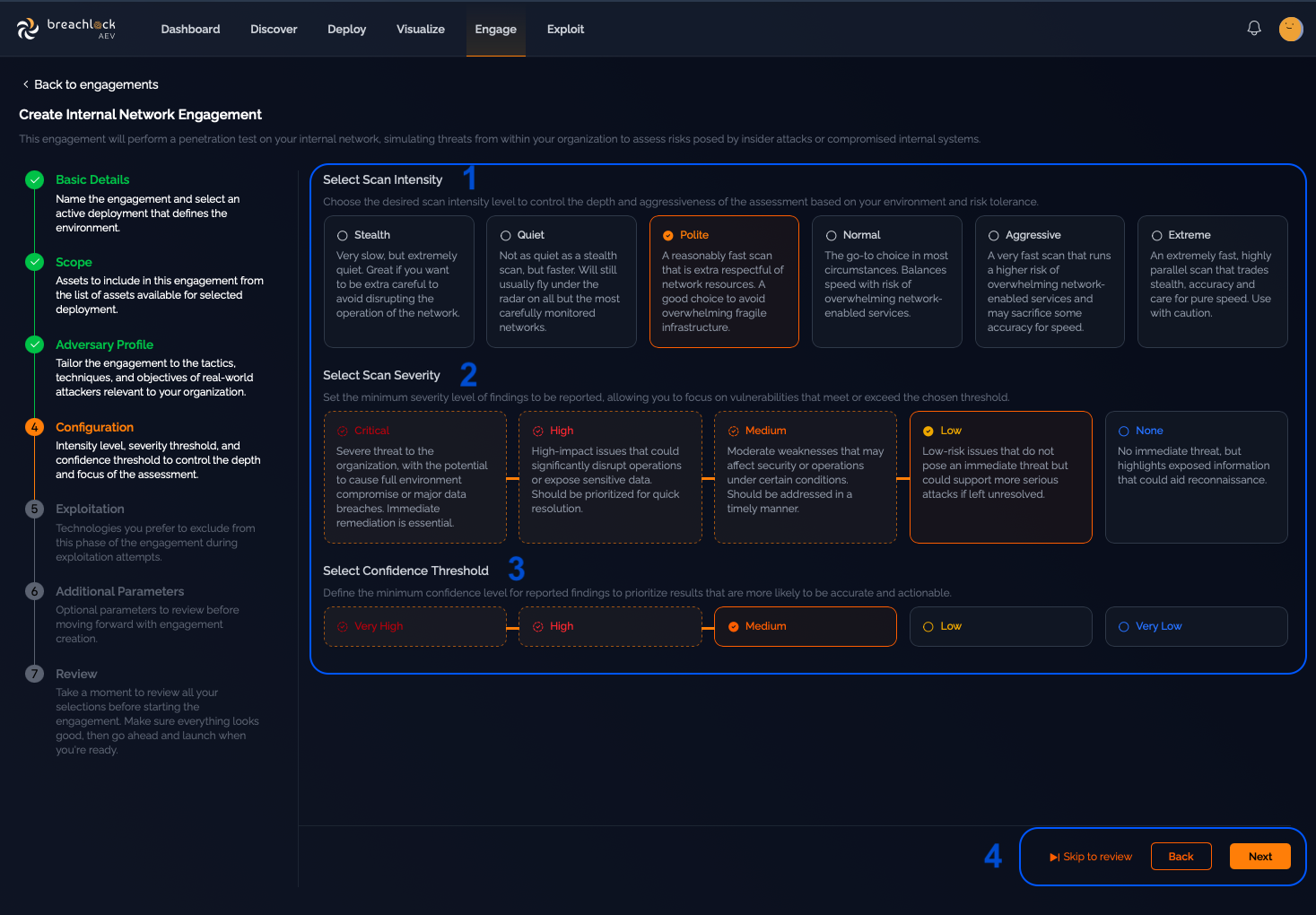
In the Configuration step, you can adjust how thorough and aggressive the assessment will be by setting three parameters:
- Scan Intensity
- Scan Severity Threshold
- Confidence Threshold
These settings control how the engagement behaves inside the environment—how fast it probes, how noisy it becomes, and what findings are ultimately reported. They directly affect network load, system stability, detection likelihood, and result accuracy.
-
Scan Intensity – Choose how aggressively the engagement probes your network. Higher intensity increases coverage and speed but also increases traffic volume and the chance of impacting sensitive systems.
-
Scan Severity – Set the minimum severity level for vulnerabilities to include in results. The platform still performs all checks, but findings below this threshold are excluded from reporting. This helps you focus either on complete visibility or on business-impacting risks depending on your objective.
-
Confidence Threshold – Set the minimum confidence level required for findings to be included. Higher confidence means greater accuracy and fewer false positives.
-
Navigation Controls:
- Next – Continue to the Exploitation step
- Back – Return to the Adversary Profile step
- Skip to Review – Skip remaining steps and go to Review. Useful for quick setup or default configurations
Scan Intensity
| Intensity Level | How Breach360 Behaves | When to Use | Operational Impact / Risk |
|---|---|---|---|
| Stealth | Very slow and careful probing with minimal traffic | Critical production systems and sensitive environments | Safest option, unlikely to affect services |
| Quiet | Low traffic enumeration with controlled probing | Production systems requiring minimal disturbance | Very low impact, minimal user visibility |
| Polite | Balanced scanning rate and connection handling | Testing during business hours | Low impact, generally safe for active users |
| Normal | Standard probing speed and coverage | Routine security validation | Moderate load but normally stable |
| Aggressive | Fast enumeration and increased parallel requests | Maintenance windows and planned assessments | Noticeable network load, may trigger alerts or slow services |
| Extreme | Maximum speed and concurrency across targets | Lab or staging environments only | High risk of congestion, alerts, instability, or temporary outages |
Severity Threshold
| Severity Threshold | Reporting Focus | Typical Use | Outcome |
|---|---|---|---|
| Low | All identified weaknesses | Engineering analysis and remediation planning | Complete visibility with higher finding volume |
| Medium | Actionable security issues | Routine security operations | Prioritized results with reduced noise |
| High | Material risk exposures | Management and compliance reporting | Concise view focused on business-impacting risks |
Confidence Threshold
| Confidence Threshold | Reporting Criteria | Typical Use | Outcome |
|---|---|---|---|
| Very Low | Reports early indicators with minimal verification | Exploratory analysis and research | Maximum visibility with significant noise |
| Low | Includes findings with limited validation | Broad investigation and threat hunting | Wide coverage with possible false positives |
| Medium | Requires reasonable verification | Day-to-day security operations | Balanced accuracy and coverage |
| High | Requires strong verification before reporting | Operational remediation and review | Reliable results with low false positives |
| Very High | Reports only highly verified findings | Compliance evidence and formal reporting | Highly accurate, minimal noise, may omit weak signals |
Configuration Considerations
Certain combinations of these parameters can materially impact system performance and user experience. Configure engagements according to approved testing windows and operational risk tolerance.
| Configuration | Guidance |
|---|---|
| Extreme intensity + full subnet | Generates very high traffic across the environment and can saturate network segments. Use only in isolated lab or staging networks where performance impact is acceptable. |
| Aggressive + exploitation enabled | Rapid probing combined with exploitation attempts may destabilize services or trigger defensive controls. Run only during planned maintenance windows with stakeholder approval. |
| Low confidence + large scope | Produces a large volume of unverified findings and alerts, increasing investigation overhead. Suitable only for exploratory analysis; avoid for operational reporting. |
| High intensity during business hours | Increased connection rate can affect user-facing applications and degrade performance. Restrict higher intensity scans to off-hours or approved testing periods. |
Recommended practice: For production environments, prefer Stealth, Quiet, or Polite intensity with Medium–High confidence. Use CVE-based scope for remediation validation, Aggressive settings during maintenance windows, and reserve Extreme intensity exclusively for controlled testing environments.
Exploitation (Optional Step)
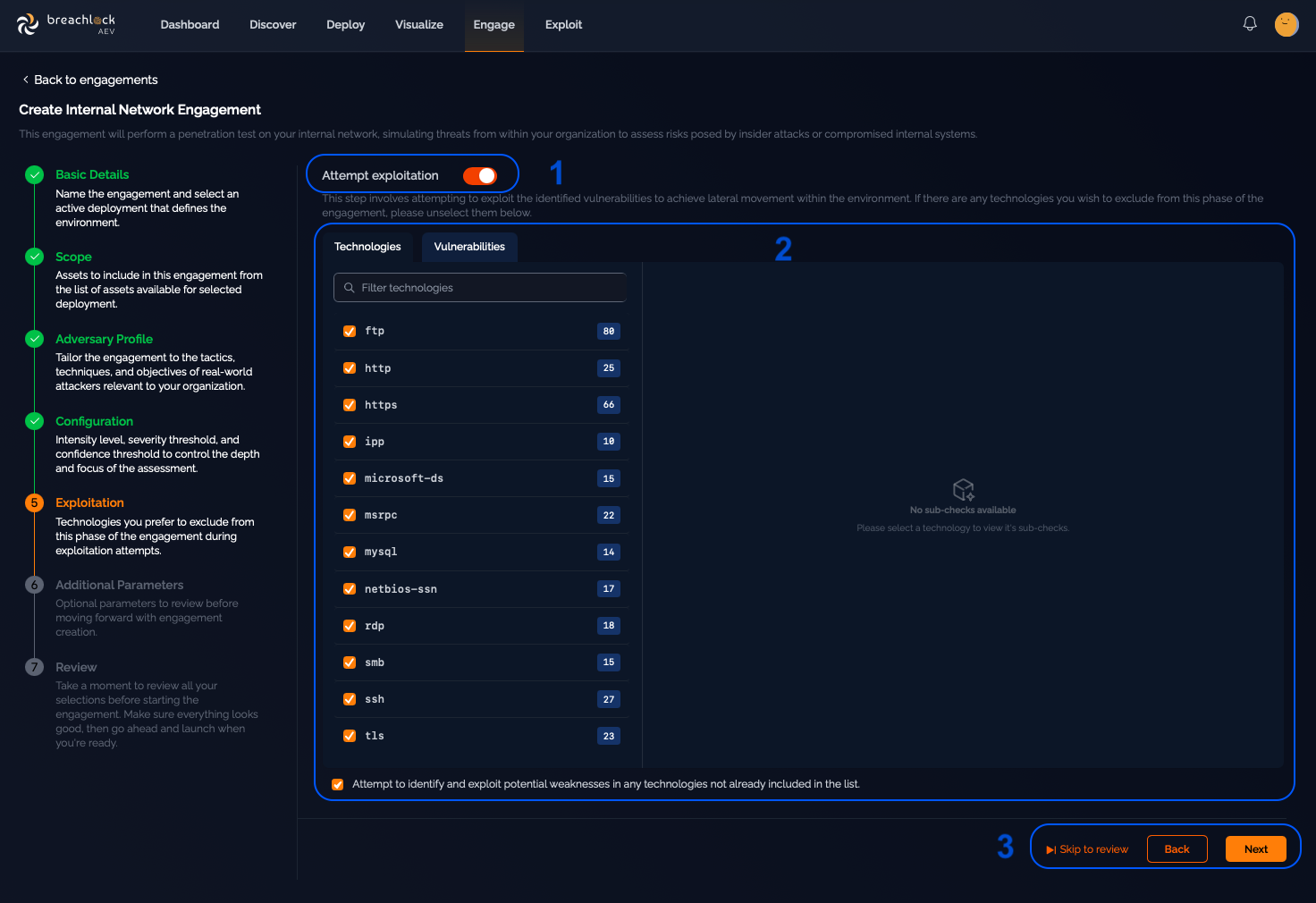
In the Exploitation step, you decide whether Breach360 should attempt to exploit discovered vulnerabilities and which technologies to include or exclude from exploitation attempts.
Enabling exploitation simulates attacker behavior to show how vulnerabilities could be used for lateral movement or privilege escalation in your network. When disabled, the engagement remains non-intrusive and performs discovery only, which is useful for compliance-restricted assessments or read-only testing environments.
-
Attempt Exploitation Toggle - Choose whether to attempt exploitation during the engagement:
-
When Enabled (default):
- Breach360 will attempt to exploit identified vulnerabilities
- Successful exploitation may reveal additional attack paths
- Lateral movement attempts may be performed
-
When Disabled:
- The engagement will identify vulnerabilities but won't attempt exploitation
- Useful for compliance-restricted assessments or read-only testing environments
-
Technology or Vulnerability Selection - Configure exploitation in two ways:
- Technologies Tab (default) - Lists all detected or supported technologies in your environment. Choose specific platforms or services to test (for example operating systems, web services, or directory services). Useful when certain systems must be excluded from active testing.
- Vulnerabilities Tab - Restrict exploitation to specific vulnerability types instead of technologies.
If a CVE-based scope was selected earlier, Breach360 automatically limits exploitation to technologies relevant to those CVEs. To control technologies manually instead, remove CVE scoping in the Scope step.
- Navigation Controls:
- Next – Continue to the Additional Parameters step
- Back – Return to the Configuration step
- Skip to Review – Skip remaining steps and go to Review. Useful for quick setup or default configurations
Operational guidance
- Use exploitation to confirm real impact and attack paths.
- Disable exploitation for read-only or policy-restricted environments.
- Prefer targeted exploitation when validating remediation.
- Avoid full exploitation on fragile or legacy systems during business hours.
Exploitation converts a vulnerability assessment into an emulated attack scenario by demonstrating how weaknesses could actually be chained together inside the environment.
Additional Parameters (Optional Step)
In the Additional Parameters step, you can enable optional reconnaissance, credential handling, and evidence generation features. These options improve assessment accuracy, enhance reporting quality, and provide additional insights to help with remediation planning.
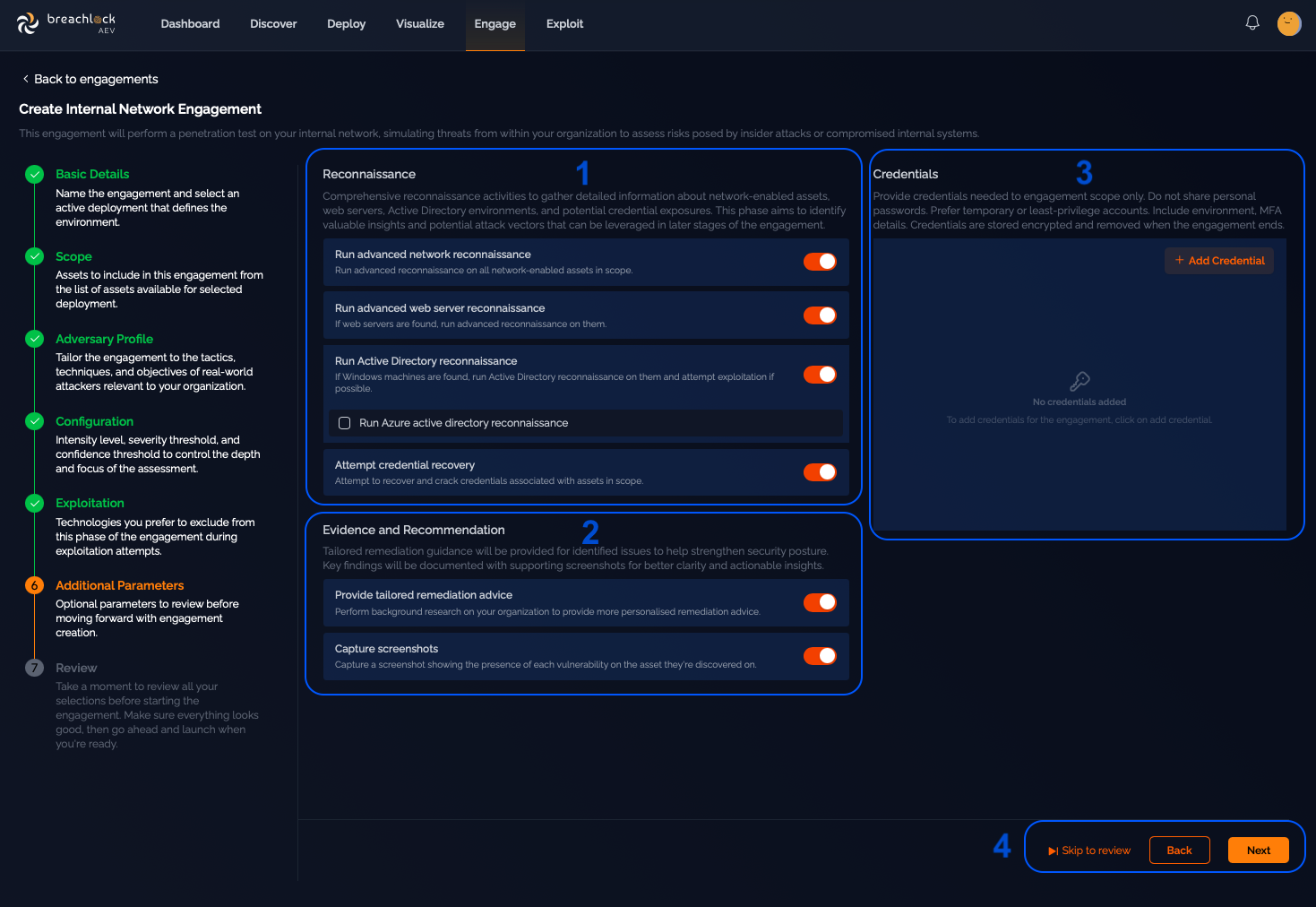
- Reconnaissance Options - Expand or refine the reconnaissance phase. Each feature can be toggled on or off individually.
| Option | Description | Operational Impact |
|---|---|---|
| Advanced Network Recon | Performs deeper host and service discovery | Broader asset coverage |
| Advanced Web Server Recon | Identifies and profiles web services | Expands detectable attack surface |
| Active Directory Recon | Maps domain users, groups, trusts, and permissions | Improves attack path accuracy; may trigger account lockouts and security alerts due to authentication enumeration |
| Credential Recovery | Attempts to identify usable credentials during discovery | Emulates real attacker behaviour during initial access |
Enabling more reconnaissance increases assessment accuracy, but can also increase authentication attempts and the volume of monitoring alerts your defensive tooling produces.
- Evidence and Recommendation Options - Enhance the quality and detail of engagement reporting.
| Option | Description | Benefit |
|---|---|---|
| Tailored Remediation | Context-aware remediation guidance | Helps prioritize and fix issues faster |
| Screenshot Capture | Visual proof of exploitation | Supports verification and audit requirements |
| Attack Path Mapping | Visual representation of compromise paths | Highlights business impact and exposure |
- Credentials Panel - Optionally add credentials that may be needed for the engagement. Provide only the credentials required for the engagement scope; do not share personal passwords. Use temporary accounts where possible and include the required MFA details. Credentials are stored in encrypted form and automatically removed after the engagement ends.
For Network engagements, this panel is typically used for Active Directory and Azure-side credentials that support reconnaissance and identity-aware checks. Web Application engagements use a separate credentials block for application login (username/password and an optional TOTP secret) — see Authentication.
-
Add Azure MFA – Initiates an MFA authentication attempt using the provided Azure Tenant ID, which securely collects directory information to support Active Directory reconnaissance. This action generates normal sign-in activity in Azure AD logs. After successful verification, the platform gathers directory metadata to improve identity relationship mapping and attack path analysis, helping the engagement better understand permissions, relationships, and potential attack paths within the directory.
-
Navigation Controls:
- Next – Continue to the Review step
- Back – Return to the Exploitation step
- Skip to Review – Skip remaining steps and go to Review. Useful for quick setup or default configurations
Review
The Review step is your final chance to verify all your settings before launching the engagement. Review the summary to ensure the engagement will run with the scope, adversary settings, configuration, evidence collection, and reconnaissance parameters you want.
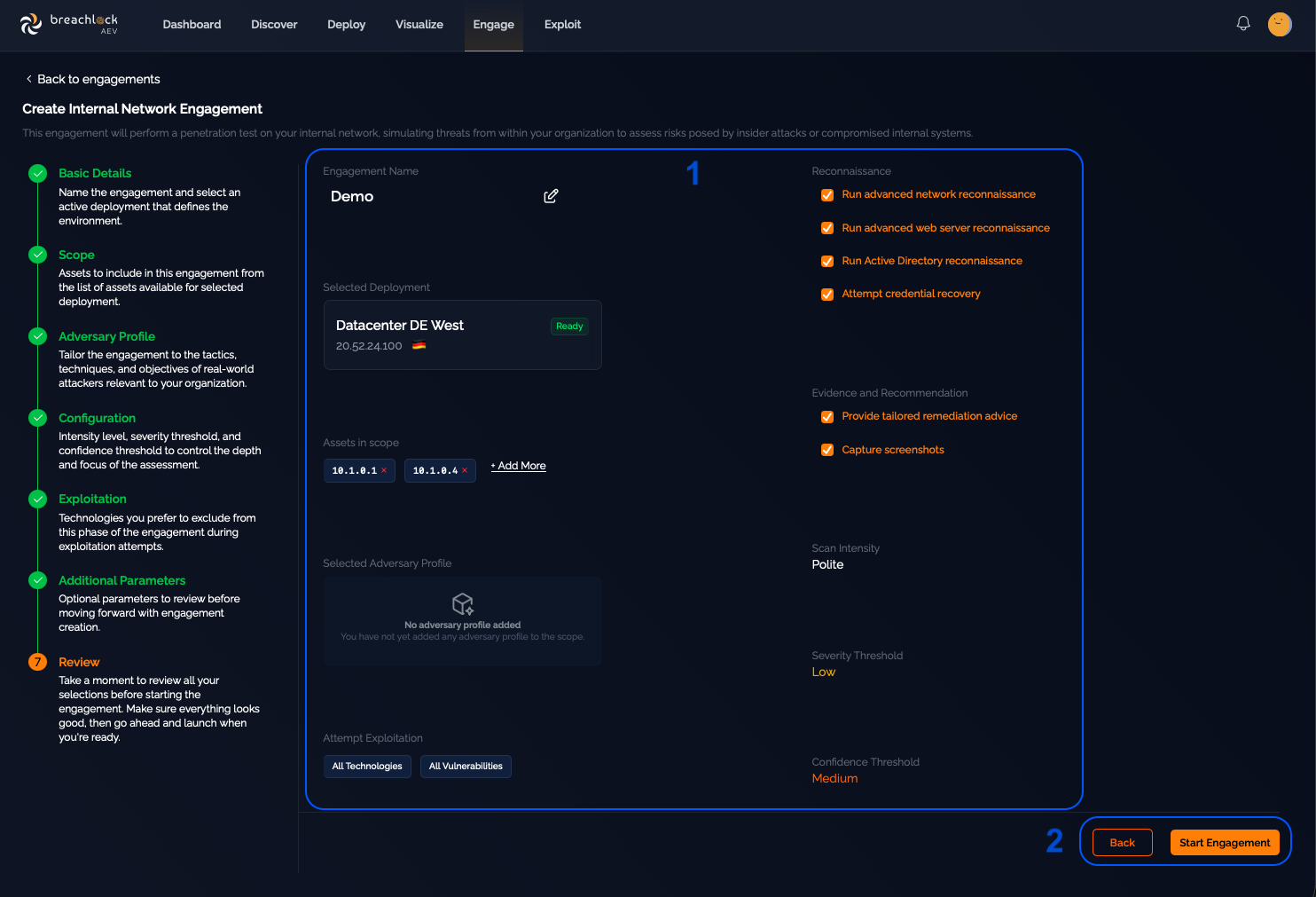
-
Review Panel - All your configuration choices are organized into clear sections for review.
-
Navigation Controls:
- Back – Return to the Additional Parameters step to make changes
- Start Engagement – Launch the engagement with your selected settings. This will:
- Run reconnaissance
- Discover vulnerabilities
- Attempt exploitation (if enabled)
- Collect evidence
- Generate reports
Engagement Outcome and Recommended Configuration
The behaviour and value of an engagement depend on the capabilities you enable. By adjusting scope, intensity, exploitation, and credentials, the platform can operate anywhere from safe validation to full attack path emulation.
| Objective | Recommended Configuration | What the Engagement Demonstrates |
|---|---|---|
| Safe production validation | Asset scope + Quiet/Polite intensity + No exploitation | Identifies vulnerabilities without affecting systems |
| Patch or advisory verification | Asset/CVE scope + Targeted exploitation | Confirms whether a known issue is actually exploitable |
| Routine security assessment | Subnet scope + Normal intensity + Exploitation | Validates real risk across the environment |
| Attack path analysis | Subnet scope + Exploitation + Credentials | Shows how access can spread between systems |
| Threat emulation exercise | Subnet scope + Adversary profile + Exploitation + Credentials | Simulates attacker behaviour aligned to your environment |
As more capabilities are enabled, the engagement transitions from theoretical exposure, to validated impact, and finally to full attack path emulation.
Engagement View
When an engagement is running or has completed, opening it gives you a consolidated view of how vulnerabilities were discovered, validated, and potentially exploited within that engagement. This view combines vulnerability discovery, exploitation validation, attack path mapping, and remediation guidance, so you can move beyond simply identifying vulnerabilities to understanding how they can be exploited and what should be prioritized for remediation.
To open an engagement, navigate to Engage from the main navigation and select the engagement you want to review. The engagement opens in a contextual workspace with multiple tabs:
- Overview
- Vulnerabilities
- Mitigation Actions
- Exploitation Path
- Attack Matrix
- Reports
- Parameters
The Engagement View also gives you real-time visibility while the engagement is still running. You can track the current phase—such as discovery or exploitation—observe how the assessment evolves across stages, and review preliminary vulnerabilities as they are identified, without having to wait for the engagement to complete.
Overview
The Overview tab provides a high-level summary of the engagement outcome along with real-time execution insights, helping you understand both the current status and the overall risk posture of the assessment.
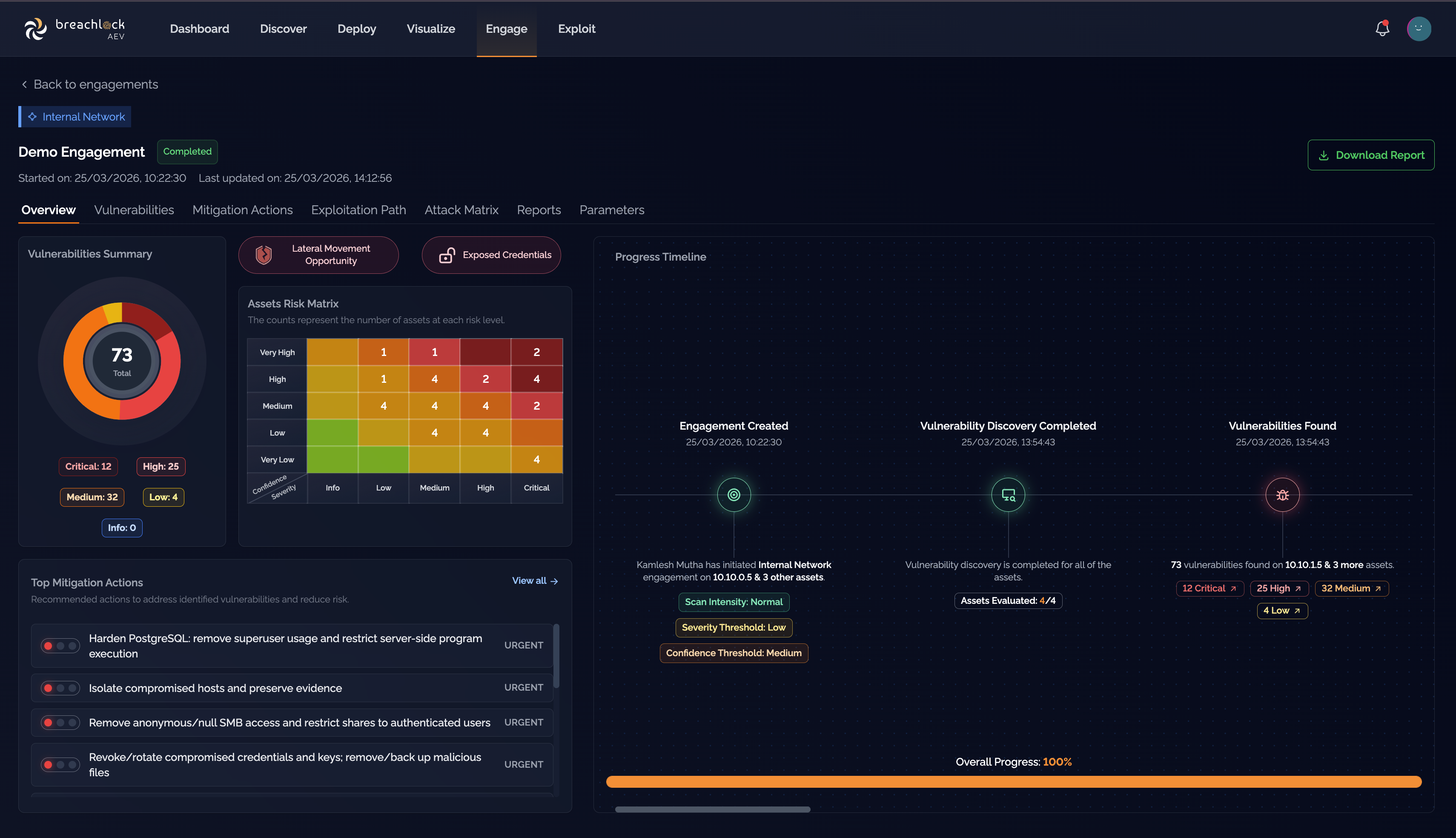
The Overview tab includes:
-
Vulnerability Summary – Total findings categorized by severity (Critical, High, Medium, Low). Use this to quickly identify critical risks and prioritize investigation.
-
Risk Matrix by Asset Count – Visualizes how vulnerabilities are distributed across assets based on severity and confidence, so you can identify high-risk systems and focus remediation where it matters most.
-
Engagement Timeline – Represents the end-to-end progression of the engagement, including stages such as creation, vulnerability discovery, exploitation objectives, and report generation. Use this to track execution flow, understand duration, and correlate findings with specific phases.
-
Key Indicators – Highlights critical risk signals such as lateral movement opportunities and exposed credentials, providing quick insight into potential attacker paths and areas requiring immediate attention.
Vulnerabilities
The Vulnerabilities tab shows detailed information about each vulnerability found during an engagement, helping you understand risk, validate exploitability, and take informed remediation actions. For each issue, Breach360 analyzes how it appears in your environment, explains how it could be exploited, and provides remediation guidance along with evidence when available.
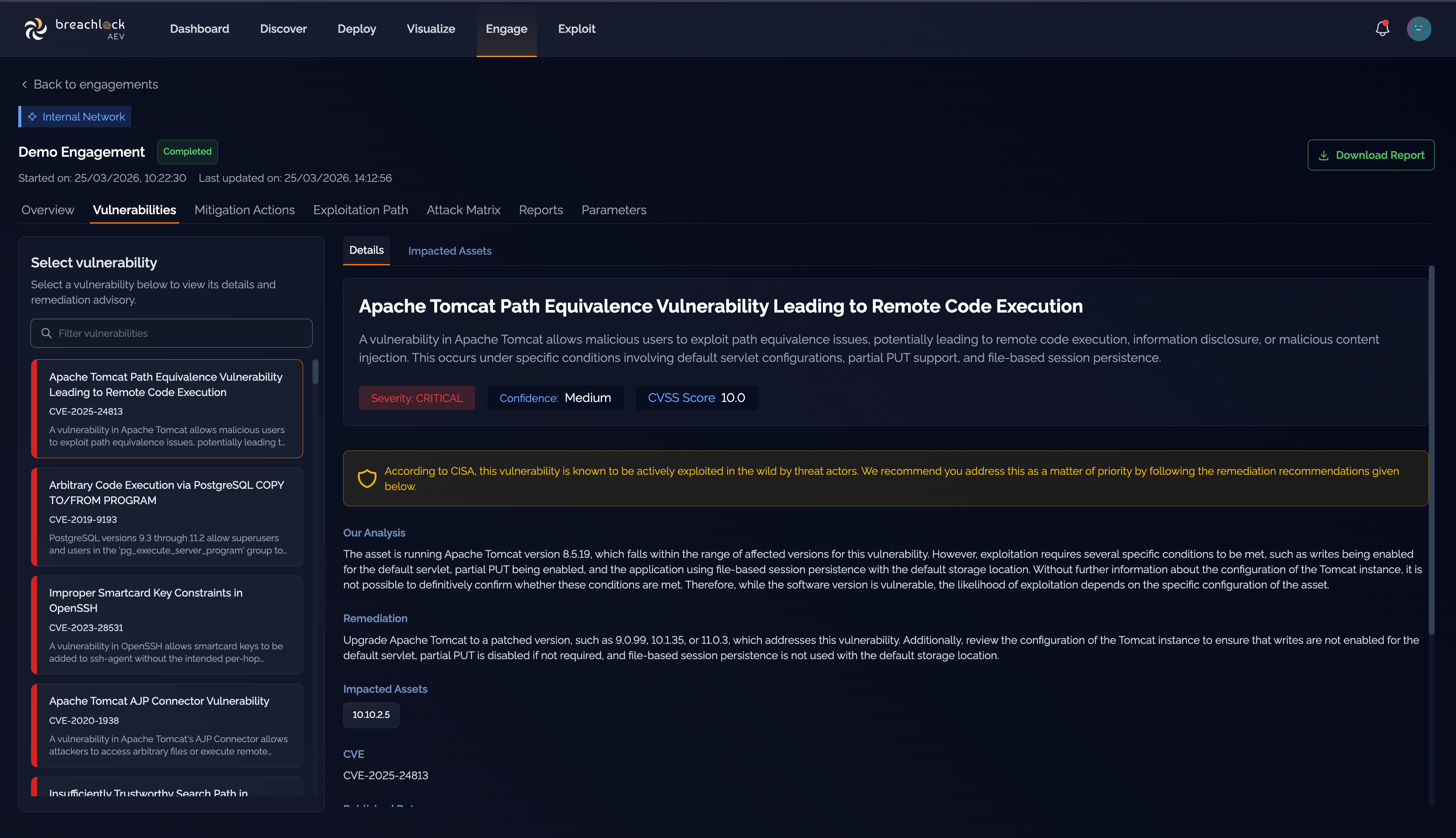
The Vulnerabilities tab includes:
-
Vulnerability List – All identified findings with key attributes such as CVE ID, severity, and a brief description. You can filter, search, and select specific vulnerabilities to focus on relevant risks.
-
Vulnerability Details and Analysis – Comprehensive information about each finding, including a detailed description, CVSS score, severity, confidence level, and exploitability context. It also explains why the vulnerability exists and outlines the conditions required for successful exploitation.
-
Impacted Assets – All systems affected by the vulnerability. When exploitation was successful and safe, you'll also see:
-
Screenshots of successful exploitation
- Extracted output or logs showing impact
- Validation steps confirming the vulnerability
This gives you concrete proof of risk, similar to what a red team or penetration tester would provide.
- Remediation Guidance – Actionable recommendations such as patches, configuration changes, and best practices, so teams can effectively address and mitigate identified risks.
Exploitation Path
The Exploitation Path tab visualizes how multiple vulnerabilities can be chained together to emulate real-world attack scenarios. Breach360 automatically maps these paths by simulating a real attacker: it discovers weaknesses, defines objectives, and attempts exploitation to validate impact. The result is an automated chain of actions from reconnaissance to exploitation that helps you understand how an attacker could move from initial access to full impact.
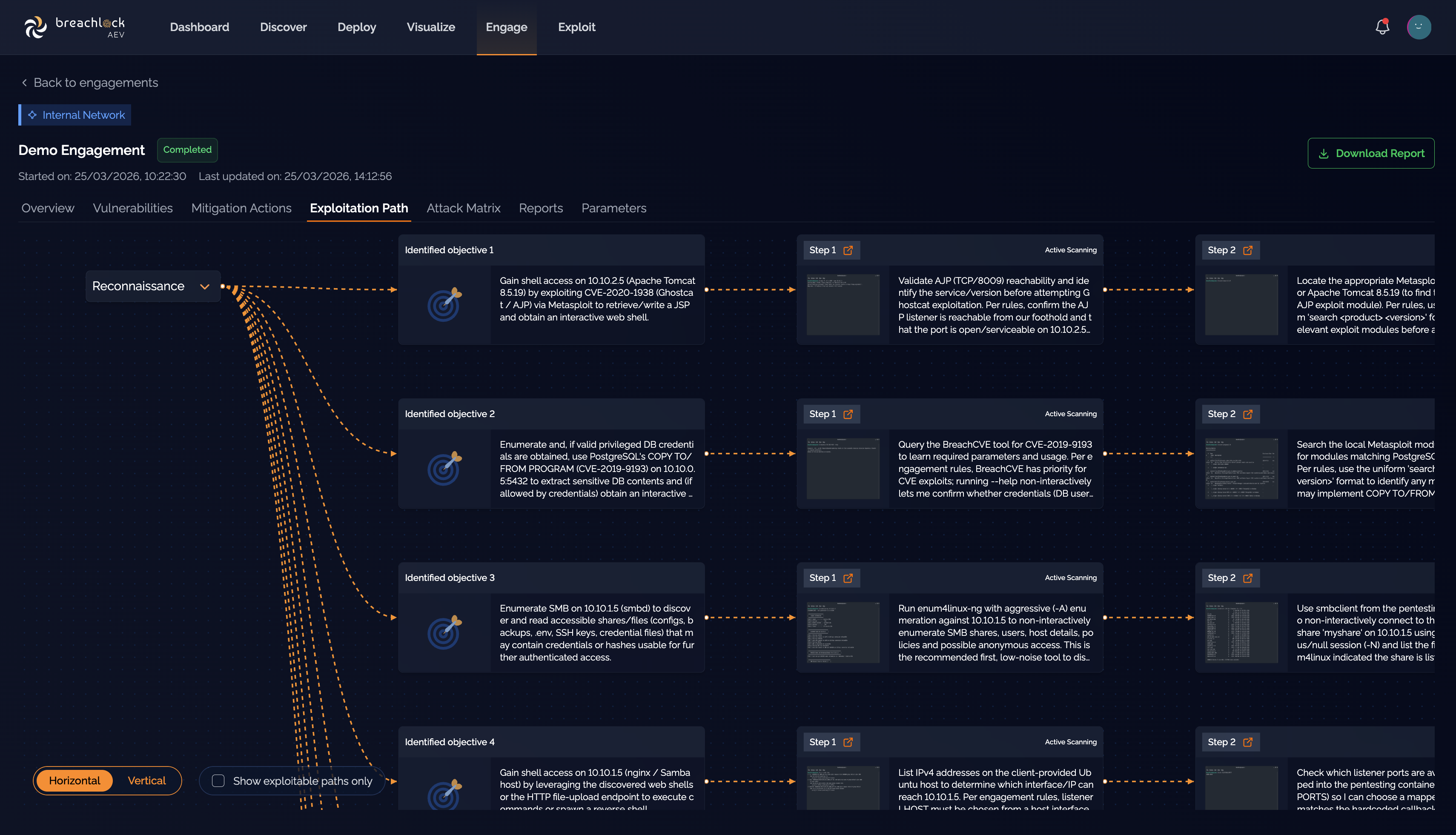
The Exploitation Path tab includes:
-
Identified Objectives – Attacker goals such as initial access, credential extraction, or remote code execution. These objectives provide a structured view of how the attack progresses toward meaningful outcomes like host compromise or data exposure.
-
Step-by-Step Execution – Each objective broken down into sequential steps, showing the actions performed, commands executed, and validation checks used to confirm progress. This helps you understand the exact path taken during exploitation.
-
Execution Context – Context on how vulnerabilities were leveraged, what actions were successfully performed, and whether exploitation was achieved, giving you clear visibility into real attack feasibility and impact.
Attack Matrix
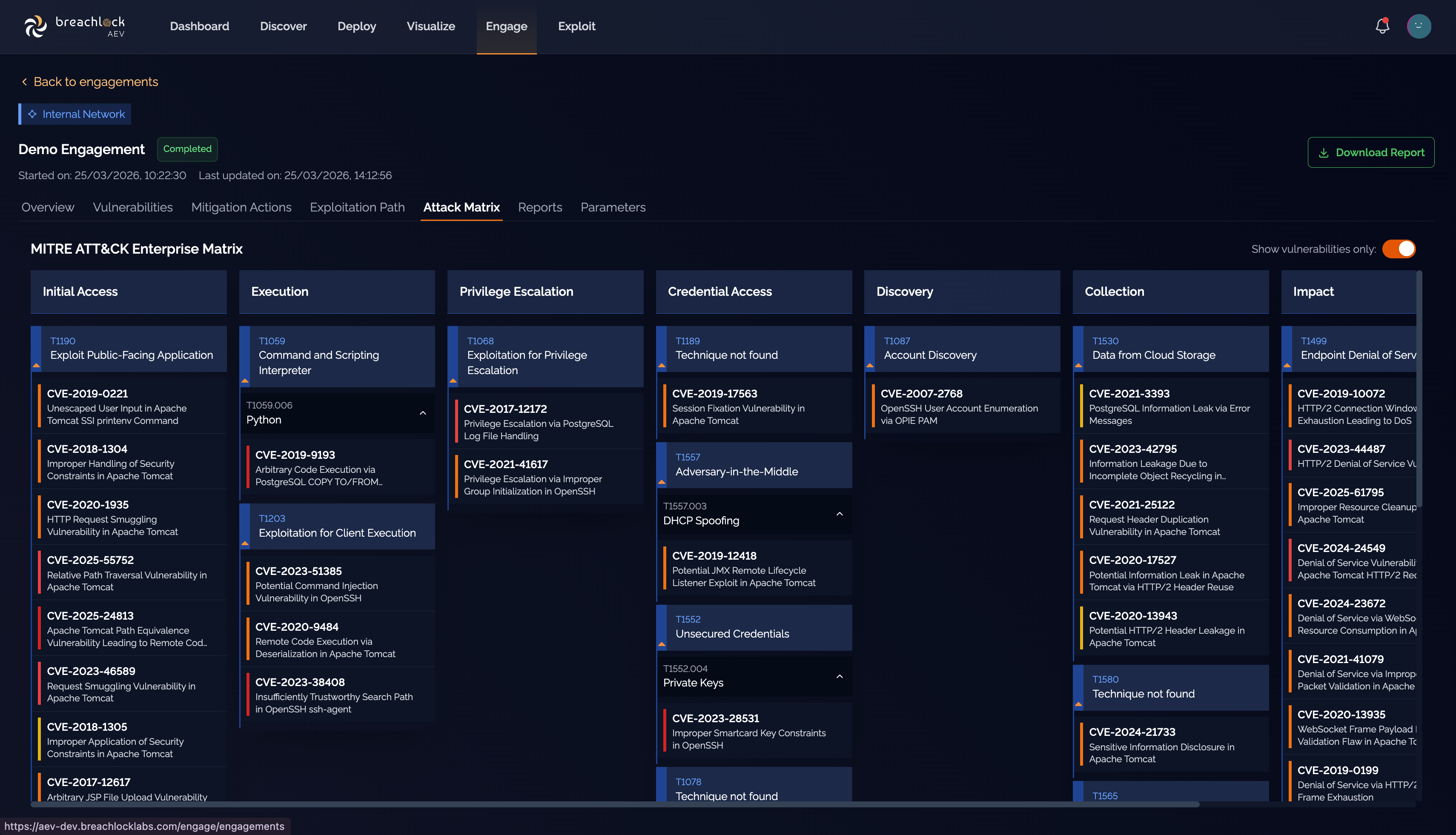
The Attack Matrix tab shows how all vulnerabilities, weaknesses, and exploitation activities from your engagement align with the MITRE ATT&CK framework. Each finding—whether a configuration weakness, misused credential, exposed service, or successful exploit—is mapped to the corresponding tactic and technique used by real-world attackers.
-
TTP Mapping – Every issue found in your environment is automatically categorized under the appropriate MITRE ATT&CK tactic, such as Initial Access, Execution, Privilege Escalation, Credential Access, Discovery, or Impact.
-
Real Adversary Behavior – See not only what is vulnerable, but how attackers would actually use these weaknesses.
-
Industry Standard Framework – By mapping findings to MITRE ATT&CK, you can assess your defenses across each stage of an attack and identify gaps in defensive coverage.
Mitigation Actions
The Mitigation Actions tab provides prioritized remediation steps based on the severity and impact of identified vulnerabilities and attack paths.
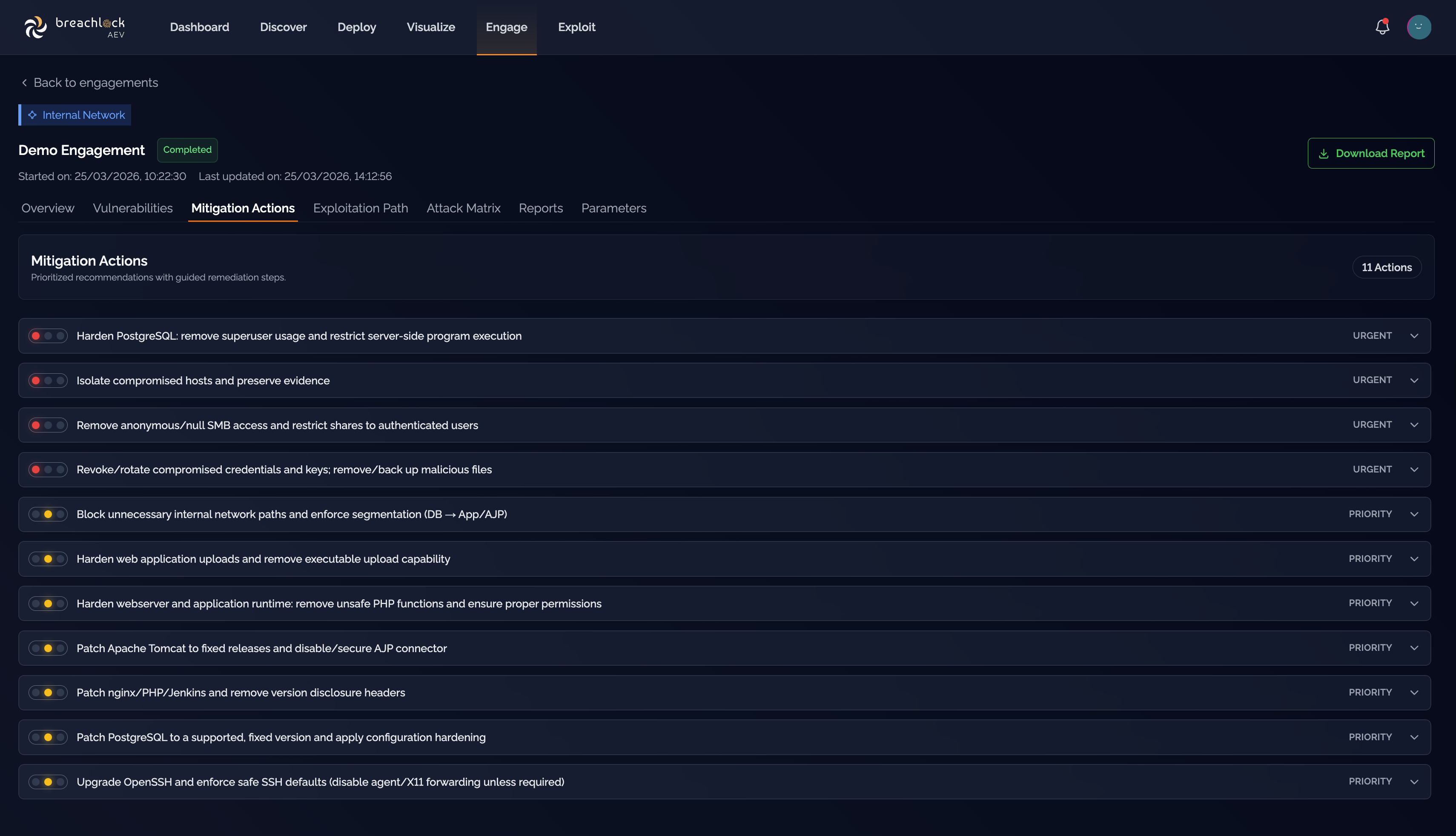
The Mitigation Actions tab includes:
-
Prioritized Recommendations – Actions are categorized by urgency, helping teams focus on critical issues that pose immediate risk while also addressing important but less urgent findings.
-
Actionable Guidance – Clear remediation steps such as patching vulnerabilities, hardening configurations, and removing insecure exposures, making it easier to implement fixes.
-
Impact-Driven Remediation – Recommendations are aligned with actual attack paths and exploitation outcomes, ensuring effort is focused on reducing real-world risk rather than theoretical exposure.
This view improves remediation efficiency by reducing noise, focusing on high-impact issues, and enabling faster resolution of security gaps.
Reports
The Reports tab provides access to downloadable engagement reports for different stakeholders, supporting both technical analysis and executive communication. Reports include a summary of findings, detailed vulnerability descriptions, remediation recommendations, technical insights, and attack path visualizations.
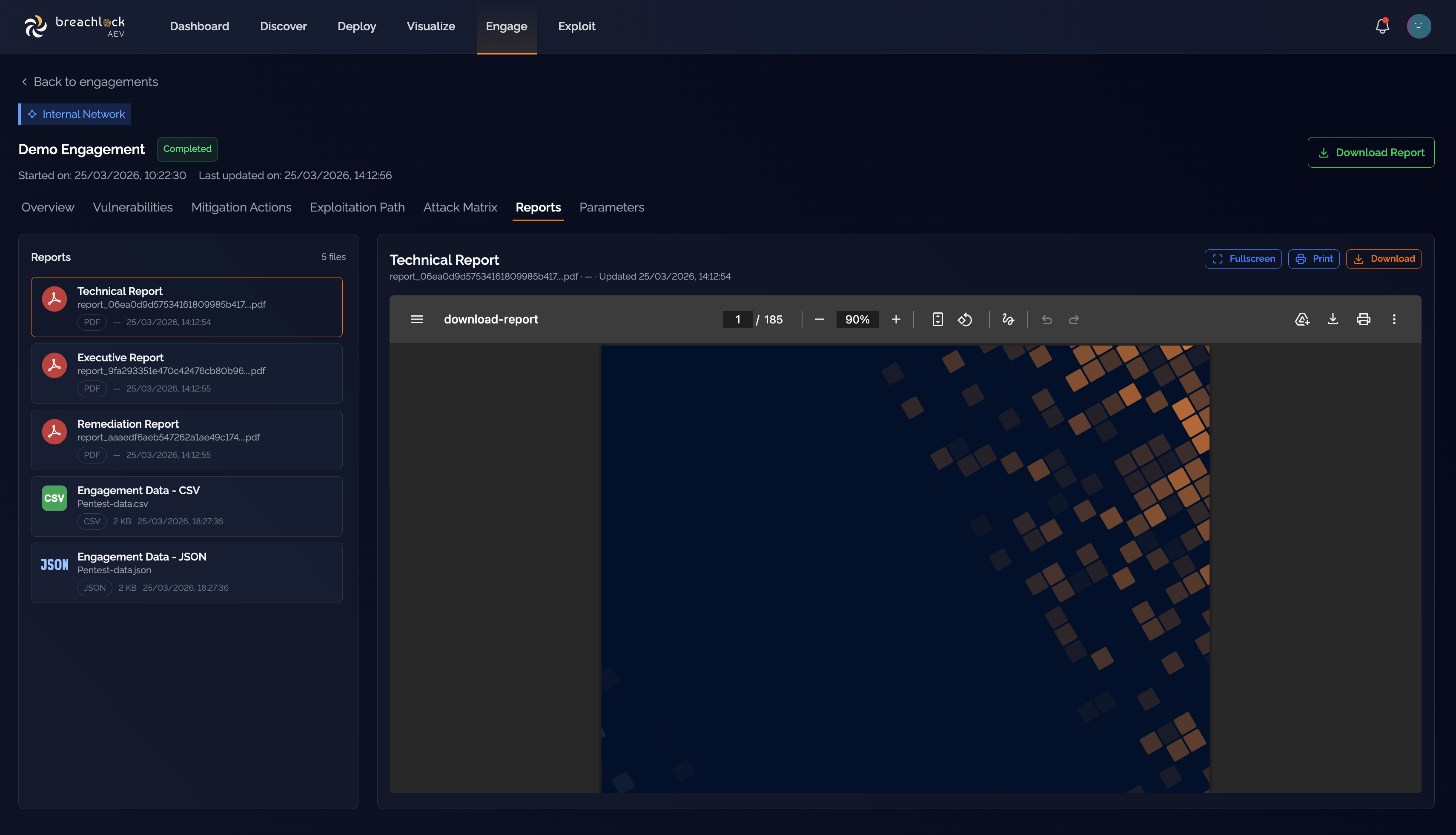
The Reports tab includes:
-
Multiple Report Types – Technical, executive, and remediation-focused reports, along with raw engagement data in formats such as CSV or JSON.
-
Stakeholder Communication – Findings can be shared with security teams, management, and auditors in a structured and understandable format.
-
Compliance and Documentation – Reports support audit requirements and internal documentation by providing formal records of vulnerabilities, risks, and remediation actions.
Parameters
The Parameters tab displays the configuration settings used during the engagement, providing transparency into how the assessment was executed.
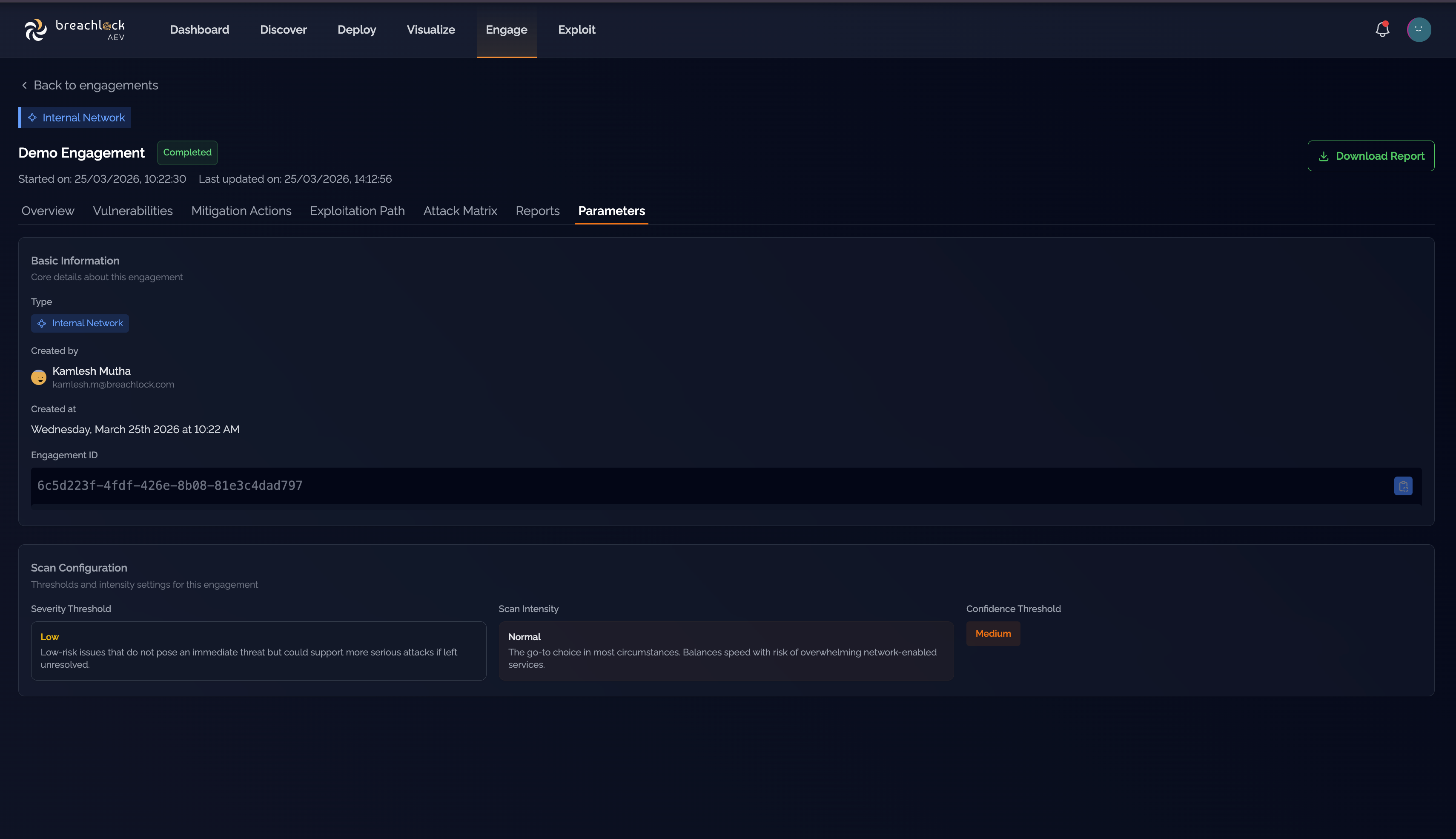
The Parameters tab includes:
-
Engagement Configuration – Details such as engagement type, scan intensity, severity threshold, and confidence threshold.
-
Execution Context – Helps you understand the conditions under which findings were generated, including scope and testing behaviour.
-
Reproducibility and Auditability – Enables teams to replicate engagements, validate results, and audit testing configurations for consistency and compliance.
How to Analyze an Engagement
Once an engagement is underway or complete, the following workflow helps you efficiently understand risk, validate impact, and prioritize remediation:
-
Start with Overview – Review the overall risk posture, severity distribution, and key indicators to quickly understand the scale and urgency of the engagement.
-
Review Vulnerabilities – Identify critical and high-severity findings, analyze affected assets, and understand the conditions required for exploitation.
-
Validate via Exploitation Path – Examine how vulnerabilities are chained together, confirm whether exploitation was successful, and assess real-world impact such as host compromise or data exposure.
-
Leverage Attack Matrix for context – Use the Attack Matrix to understand how identified vulnerabilities map to attacker tactics and techniques. This helps align findings with real-world attack behaviour, identify gaps in defensive coverage, and improve detection and response strategies.
-
Prioritize using Mitigation Actions – Focus on urgent and high-impact remediation steps to reduce risk efficiently, aligned with validated attack paths.
-
Consume Reports for communication and action – Use the available reports (technical, executive, and remediation) to share findings with stakeholders, support compliance requirements, and track remediation progress. Reports help translate technical insights into actionable outcomes for different audiences.
Need help with engagements? If you have questions about configuring or analyzing an engagement, reach out to your BreachLock representative or email us at support@breachlock.com.